
The iPad is a multifunctional device. It’s suitable for studying, work, and entertainment, and it eliminates the need to carry heavy items like a laptop, books, or notebooks. The tablet is also easy to learn: if you already have an iPhone, you’ll feel comfortable using an iPad right away. That’s because iPadOS is based on the same operating system used on the iPhone.
However, the tablet has one major advantage — its screen size. Thanks to it, some features are more advanced, others are more practical, and of course, there are unique capabilities as well. Let’s take a look at some interesting iPad features and how you can use them.
Multitasking
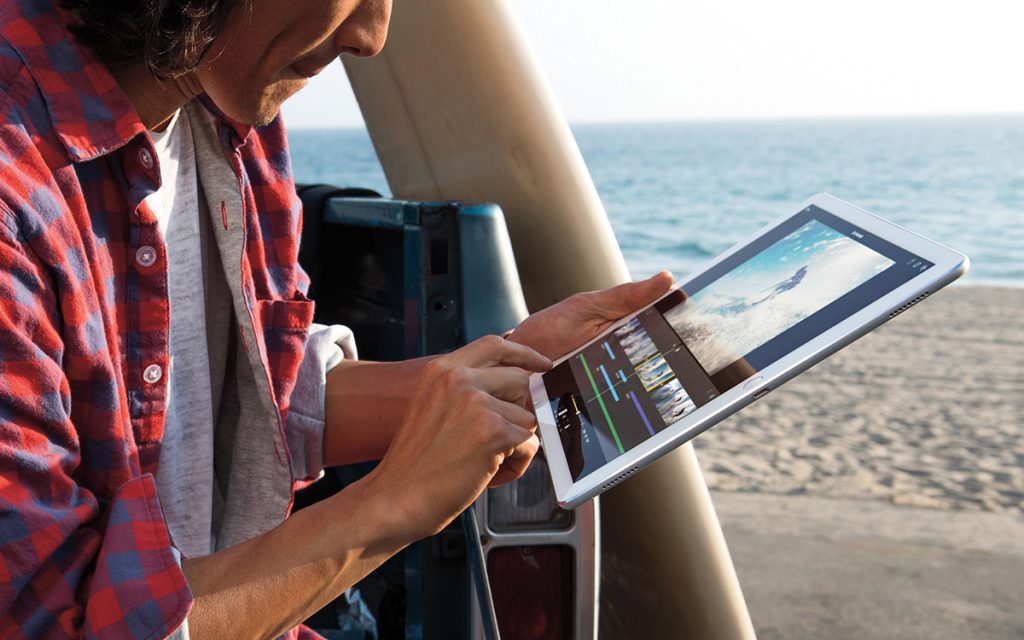
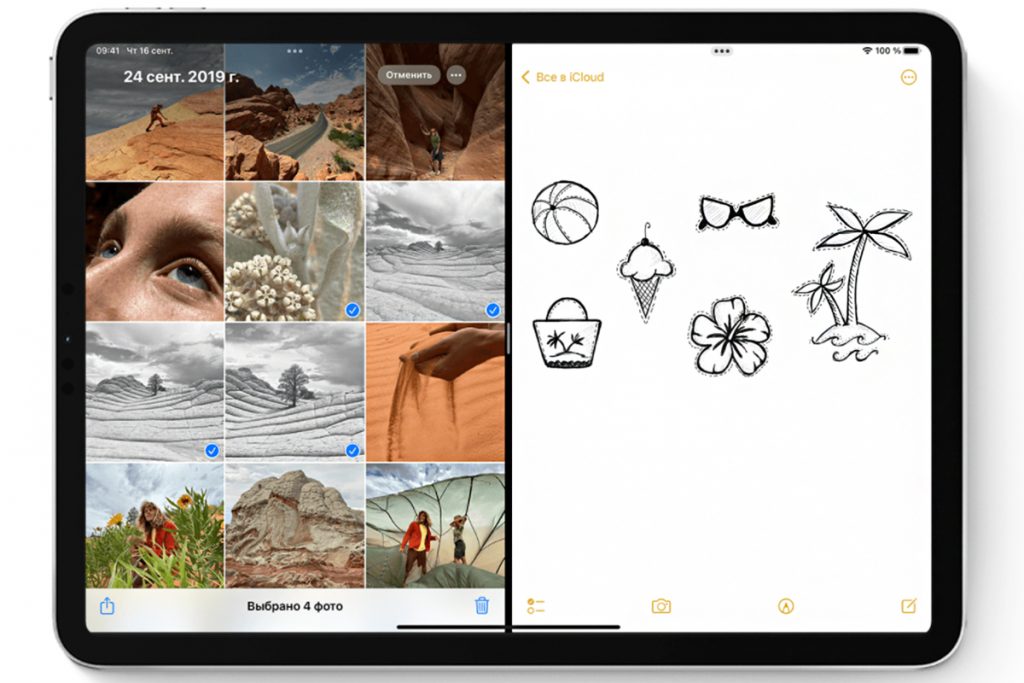
On an iPad, you can run two or even three apps on the same screen by splitting it into sections. For example, you can work in a browser and a text document at the same time. Links and images can be easily copied and dragged between windows, and the size of open apps can be adjusted.
How to Work With Two Windows on an iPad
First, go to Settings > Multitasking & Gestures and enable Apps in Windows.
- To move a window, drag it from the top edge.
- To resize a window, drag any corner.
- To open a second app, resize the currently open window. Then open the required app via the Dock or by swiping up from the bottom edge of the screen. Both windows will automatically move to the sides of the display.
- Adjust the size of the open windows as you prefer.
To expand or minimize an app to full screen, click the green button in the top-left corner of the window.
Stage Manager for Easier Multitasking
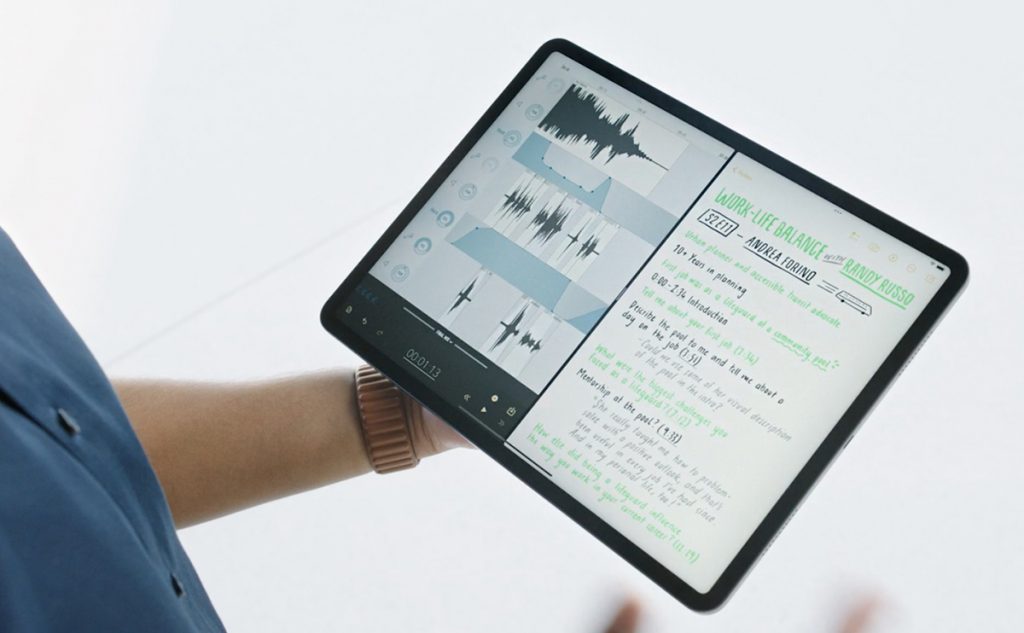
For a smoother multitasking experience, use Stage Manager. This feature allows you to group apps by tasks and place open windows anywhere on the screen. To enable it, go to Settings > Multitasking & Gestures and select Stage Manager.
Once enabled, a column with open apps will appear on the left side of the screen, while the apps you are actively working in will move to the foreground.
Long Screenshot in PDF Format
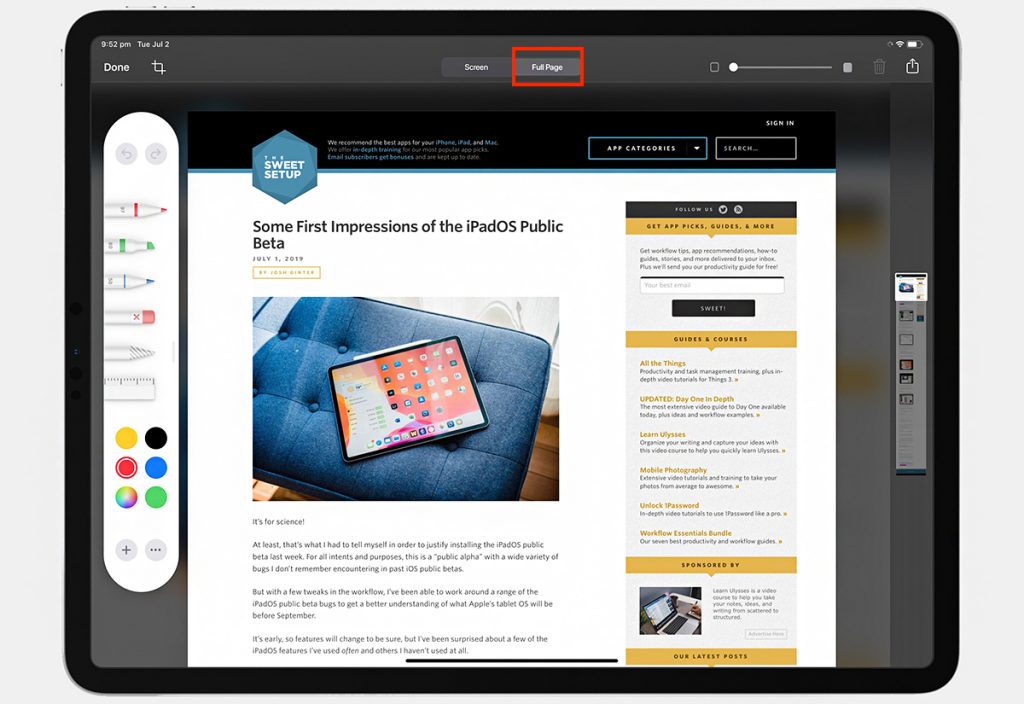
You can take a screenshot of an entire web page, document, or email — even if it’s longer than your iPad’s screen. You can add annotations to the screenshot and save it as a PDF. In this case, the screenshot will be saved as one continuous page (without breaks). When viewing the file on an iPad or iPhone, its width will automatically adjust to the screen size.
How to take a long Screenshot on an iPad:
- if your iPad has a Home button, press the Home button and the Top button at the same time;
- if your iPad uses Face ID, press the Top button and a Volume button at the same time.
Tap the screenshot thumbnail in the bottom-left corner and select Full Page > Done. After that, you can scroll through the screenshot, crop it, delete it, or save it to Photos or as a PDF in the Files app.
Quick Notes
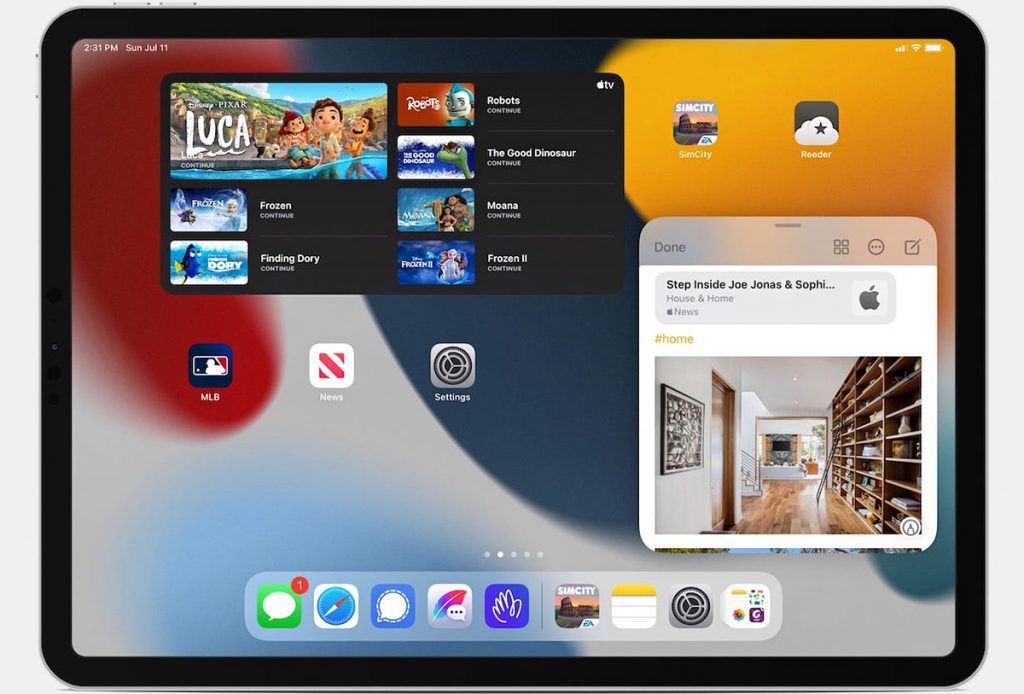
The iPadOS developers anticipated that you might need to write something down quickly so you don’t lose a thought. For example, you might want to note someone’s contact details during an online meeting, save a link to a product in an online store, or simply add cat food to your shopping list.
All of this can be done on top of any app on your iPad. The notes are saved in the full Notes app and are available across all your Apple devices.
How to use quick notes on an iPad:
- To create a note from any app or screen, open Control Center and tap the Notes icon. If it’s not there, add it first — touch and hold an empty area in the Control Center and tap the Notes icon.
- To create a Quick Note with a swipe, swipe up from the bottom-right or bottom-left corner of the screen using your finger or Apple Pencil. To enable this feature, go to Settings > Apps > Notes > Corner Gestures and choose an action.
Also, if you want to use your finger specifically, open Settings > Multitasking & Gestures and enable Swipe Finger From Corner.
Split Keyboard
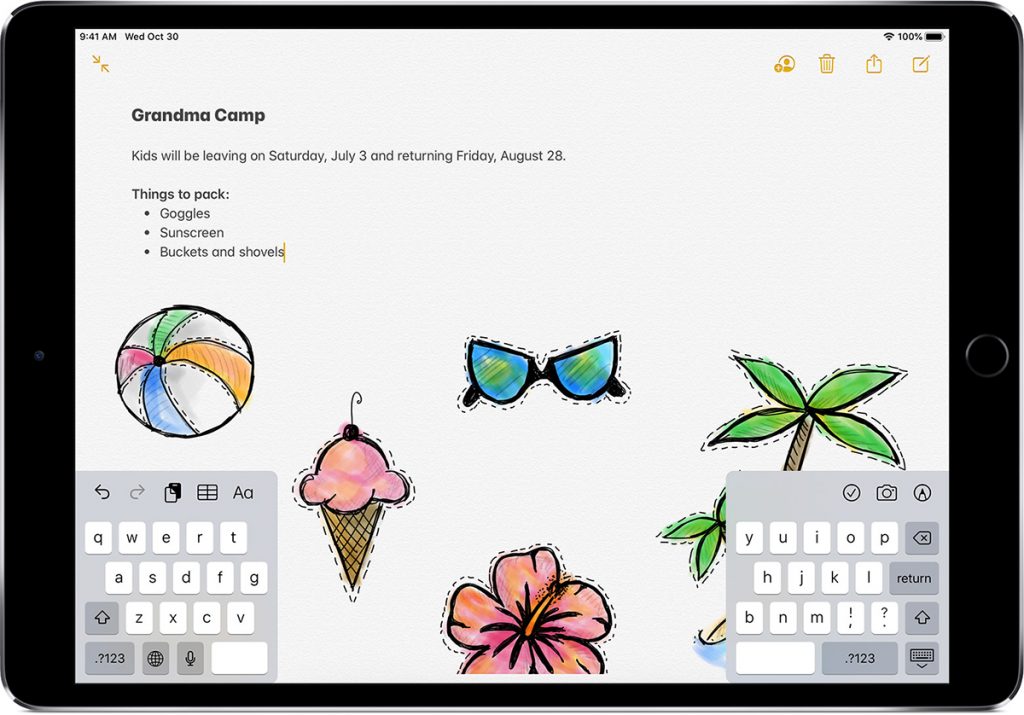
This feature allows you to split the on-screen keyboard on an iPad into two parts with a gap in the middle. These sections can be moved up and down, which is especially convenient when typing long texts — you can hold the tablet and type with both hands.
First, you need to enable this option. Go to Settings > General > Keyboard and turn on Split Keyboard. To split the keyboard while typing, touch and hold the keyboard icon (with a down arrow) on the on-screen keyboard, move your finger to Split, and release it.
Sidecar: Use Your iPad as a Second Monitor
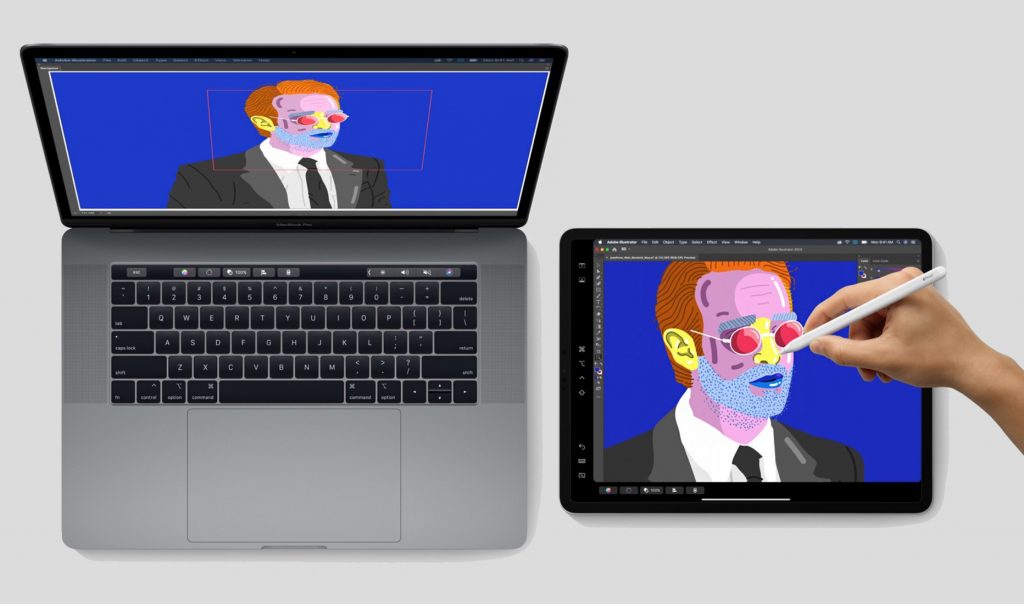
Sidecar is a built-in, free feature that allows you to use your iPad as a second monitor for your Mac. It’s especially useful when you need more workspace. If you have an Apple Pencil, Sidecar can also turn your iPad into a graphics tablet, making it suitable for graphic editors, drawing apps, photo editing, and video editing.
How to Connect an iPad to a Mac
There are two ways to use Sidecar: wired and wireless. To connect via Wi-Fi, follow these steps:
- sign in to the same Apple Account on both devices and update macOS to the latest version;
place your iPad and Mac close to each other; - set up Sidecar. On your Mac, open Apple menu > System Settings > Displays and select your iPad at the top of the window.
Note: to prevent your iPad from running out of battery during use, connect it to your Mac using a cable.
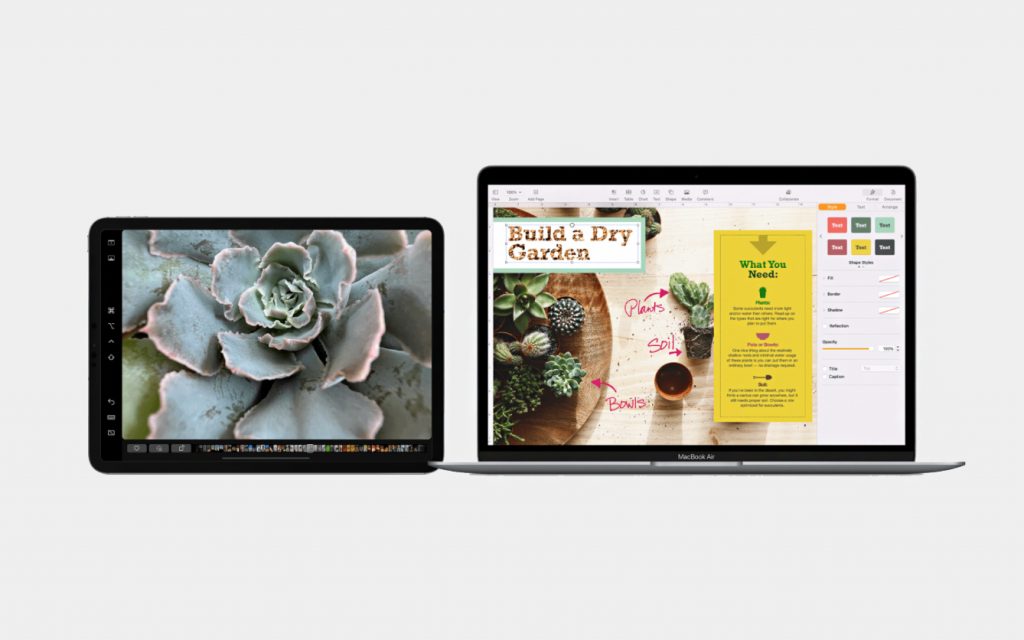
You can use Sidecar in two modes:
- iPad as an extended Mac desktop — to move an app window from your Mac to the iPad, hover over the green button in the top-left corner (full-screen mode) and select Move to iPad. You can also simply drag the window from your Mac to the iPad.
- iPad mirroring the Mac display — in the Screen Mirroring menu, choose the option to mirror your display.
Note: Sidecar lets you use the Touch Bar even if your Mac doesn’t have one. The Touch Bar appears on the iPad screen, and you can tap the controls with your finger or use an Apple Pencil.
For even more Apple tips, tricks, and tech news, follow us on Instagram. Subscribe to stay up to date and not miss anything interesting!
Read more
Always be aware!
Subscribe to the newsletter and be the first to know about new promotions and special offers