

Apple laptops can do almost anything: you can work in text and graphics editors, run games, watch videos, write code, and perform many other tasks. All this is possible thanks to the high performance of the MacBook: its features can be counted in the hundreds.
To make your user experience more comfortable, developers have created interesting MacBook features, but some of them are hidden. So, in this article, we’ll figure out what to do on a MacBook if you have free time and which Mac features will be useful.

Quick Emoji Selection
We often use emojis when communicating, typing text, and performing other tasks. Most users select them from a list provided on social networks or in messengers. On a MacBook, you can quickly and easily bring up a list of emojis using hotkeys.
Pressing Control + Command + Space simultaneously will open a window with emojis. When working in Microsoft Office applications, you can go to Edit, go to Emoji & Symbols, and select any emoji. In Pages and other built-in programs, a similar option is hidden in the Edit menu.
Using Spotlight to Search and Convert
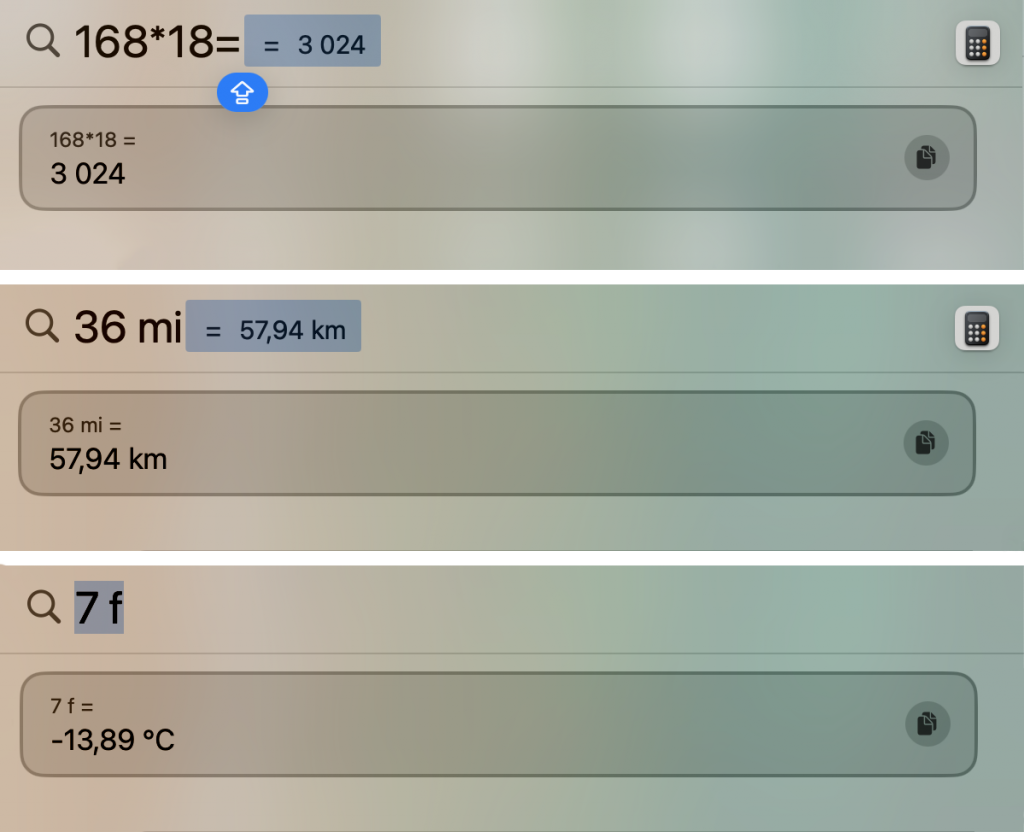
The familiar Spotlight search system also has some hidden features. You can use it to search not only for programs, but also for files. Its main feature is automatic conversion of currencies, weights, distances, and other values.
You can open the system in the macOS menu (click the magnifying glass icon) or using Shortcuts. In the search field, enter words from the document title, the required value, or a mathematical equation.
Important note: if you are searching for a document by phrase, put it in quotation marks. This way, the search system will look for the exact phrase, rather than each word separately.
Animoji in Your Profile
Another thing you can do on your MacBook is set up your profile and choose an avatar. macOS lets you set an animated emoji that will react to your actions. For example, the avatar will get upset if you enter the wrong password, or be happy when you do everything right.
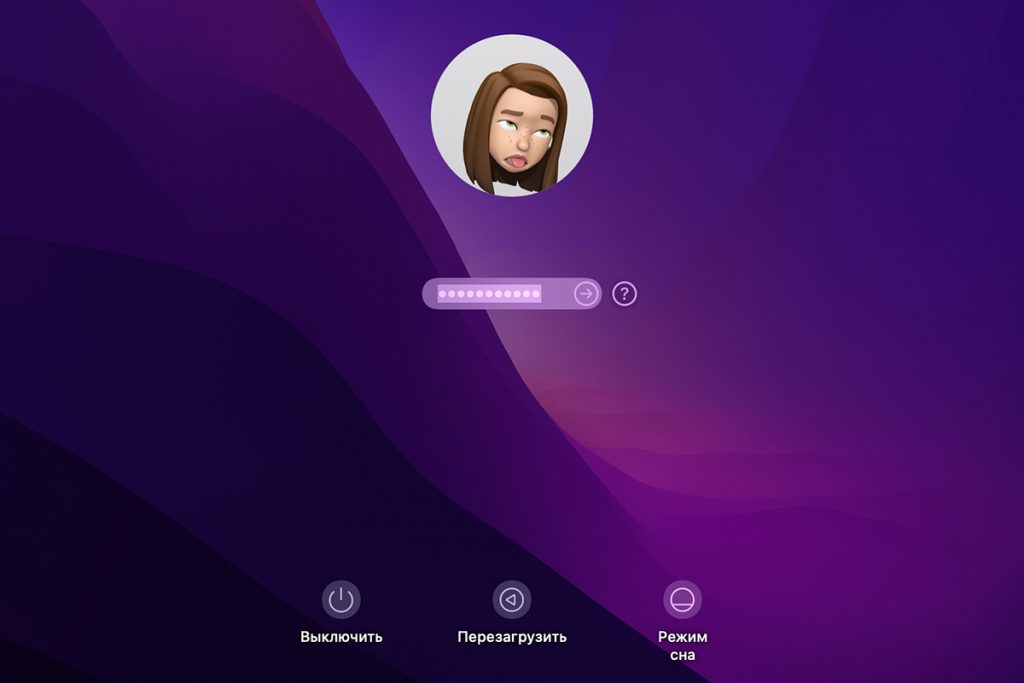
To customize your icon, use this MacBook life hack:
- Go to your account in System Preferences.
- Hover your cursor over your avatar and click Edit.
- In the Memoji list, click the plus sign, customize your avatar, and save it.
These Mac tricks will diversify your work with the device and improve your user experience.
Adjusting Volume and Brightness

Adjusting volume and brightness When checking how a MacBook works, we usually test its physical parameters, including the speaker volume and screen brightness buttons. But there is another way that allows for smoother adjustment.
Hold down the Option + Shift + brightness/volume buttons and see the result. With standard settings, the brightness increases or decreases by a certain amount set by the system. If you choose to adjust it with hotkeys, the screen changes more smoothly. The same applies to volume.
Creating a Password-Protected Folder
Data privacy is one of the most important concerns for MacBook owners. We will discuss how to use the folder hiding feature below. To do this, you can use Disk Utility. The utility creates password-protected “cells” in which folders are placed.
You can find it in the Spotlight search engine. What to do next:
- Find your “secret” folder, click “Select” and choose a location to store it.
- In the window that opens, select the type of encryption: 128-bit is faster, while 256-bit is more secure.
- Enter a password and confirm it.
- In the “Image Format” menu, click “Read/Write” and save the file.
The folder image will be saved in .dmg format within a few seconds, after which you just need to click “Done” and delete the original.
Changing the Layout of Icons in the Menu
The MacBook interface allows you to sort icons in the menu bar according to your preferences. Hold down the Command key and drag the icons in the bar to a convenient location. You can also go to System Preferences, select the Control Panel, and sort the icons.
Text Typing by Sound
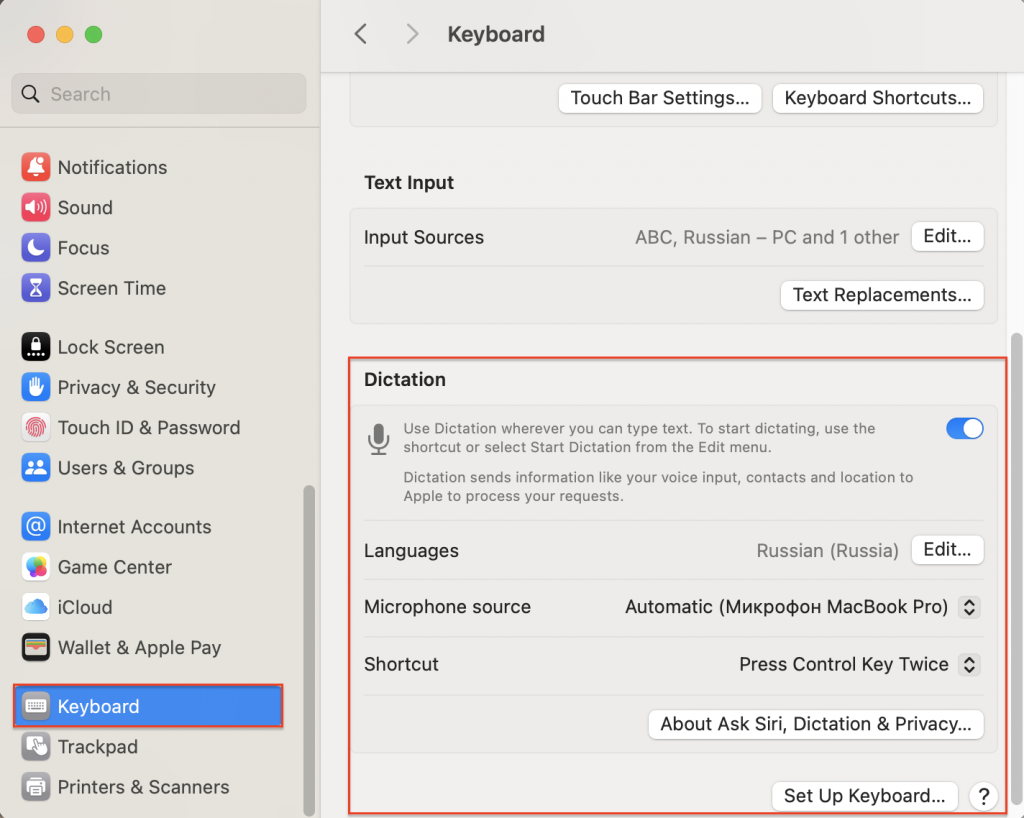
Another idea on how to get the most out of your MacBook is to enable text recording. When working or studying, there are often situations when we don’t have time to write down the necessary information. But Mac life hacks can solve this problem.
The Dictation feature will help you record text by ear. To activate it, go to System Preferences, select Keyboard, and activate the desired option in the menu. To start it, simply hover your cursor over the document and double-click the Control key. Now you know what to do on a MacBook when you need to record text and the speaker is talking too fast.
This is not all that a MacBook can do. For other life hacks and configuration tips, check out our blog. But now you know a few more useful secrets about Apple laptops and can use them to personalize your settings. If you still have questions, visit iSpace in Georgia — our experts will help you find the answers.
Check out for more
MacBook Pro 14 2025 Review: What’s Surprising About Apple’s New Product
Which Mac Should You Choose for Graphic Design and Video Editing in 2025?
How to Use a MacBook: Path from Setup to Customization
Always be aware!
Subscribe to the newsletter and be the first to know about new promotions and special offers