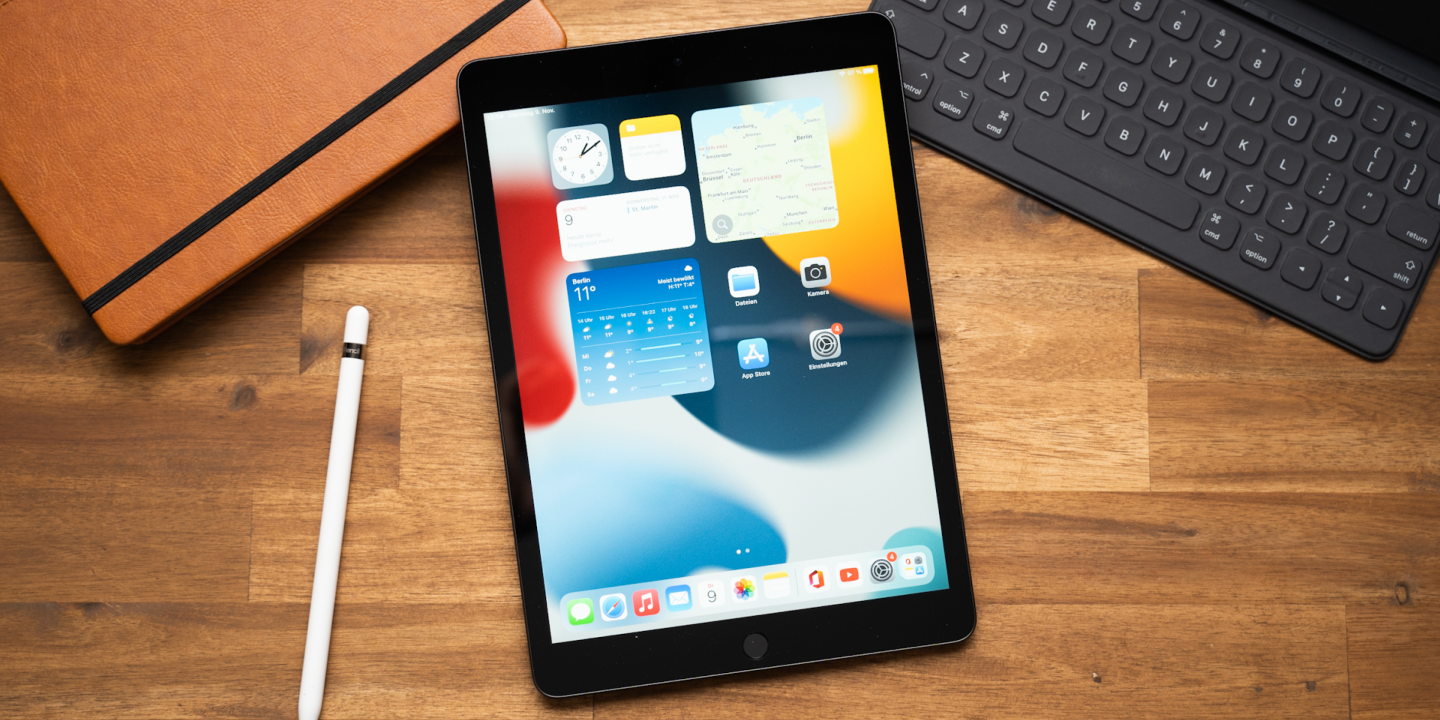


The iPad is an incredibly versatile device, ideal for studying, working, and entertainment alike.
In today’s blog, we’ll show you 5 interesting and useful iPad features that you might not even know about.
1. Split screen – Split View
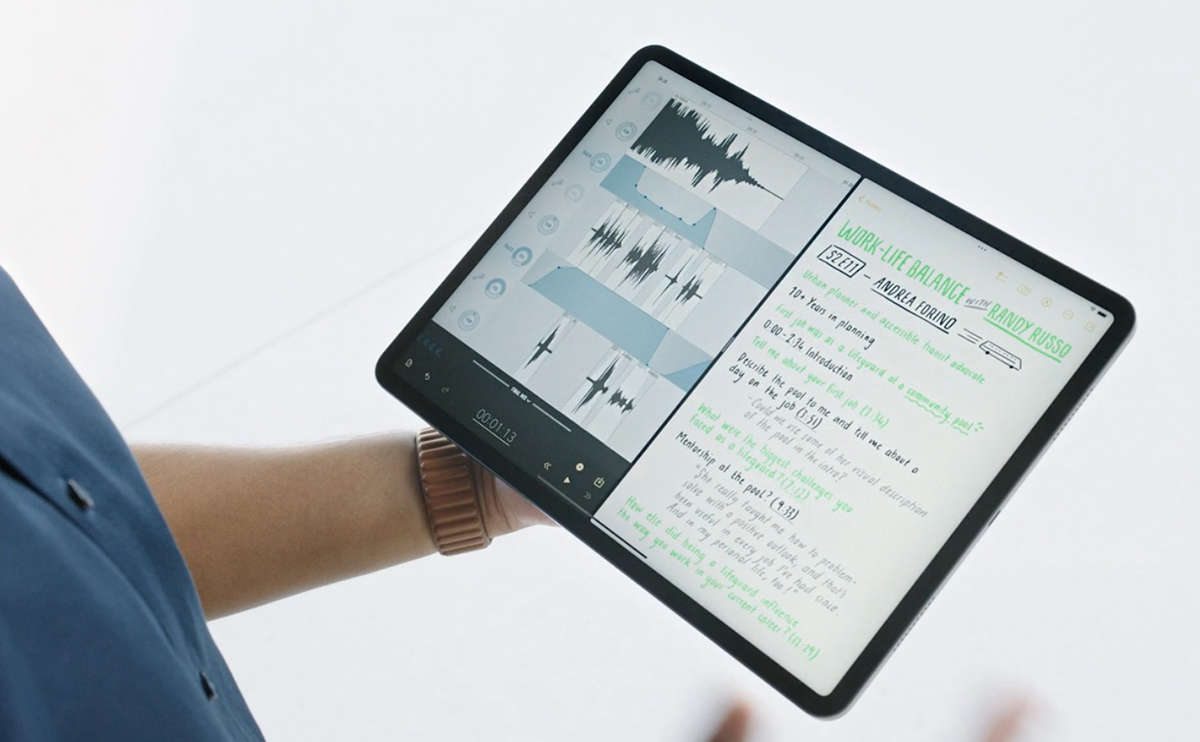
On iPad, you can work in two apps simultaneously by splitting the screen — work in the browser and in a text document at the same time.
To use Split View on iPadOS 15:
- In the app, tap the three dots at the top of the screen (if there are no dots, the app doesn’t support Split View);
- Select Split View. The open app will move to the side and the Home screen will appear;
- Then open the second app. To navigate between screens, swipe left or right, or tap the app icon in the Dock.
2. Full-page screenshot
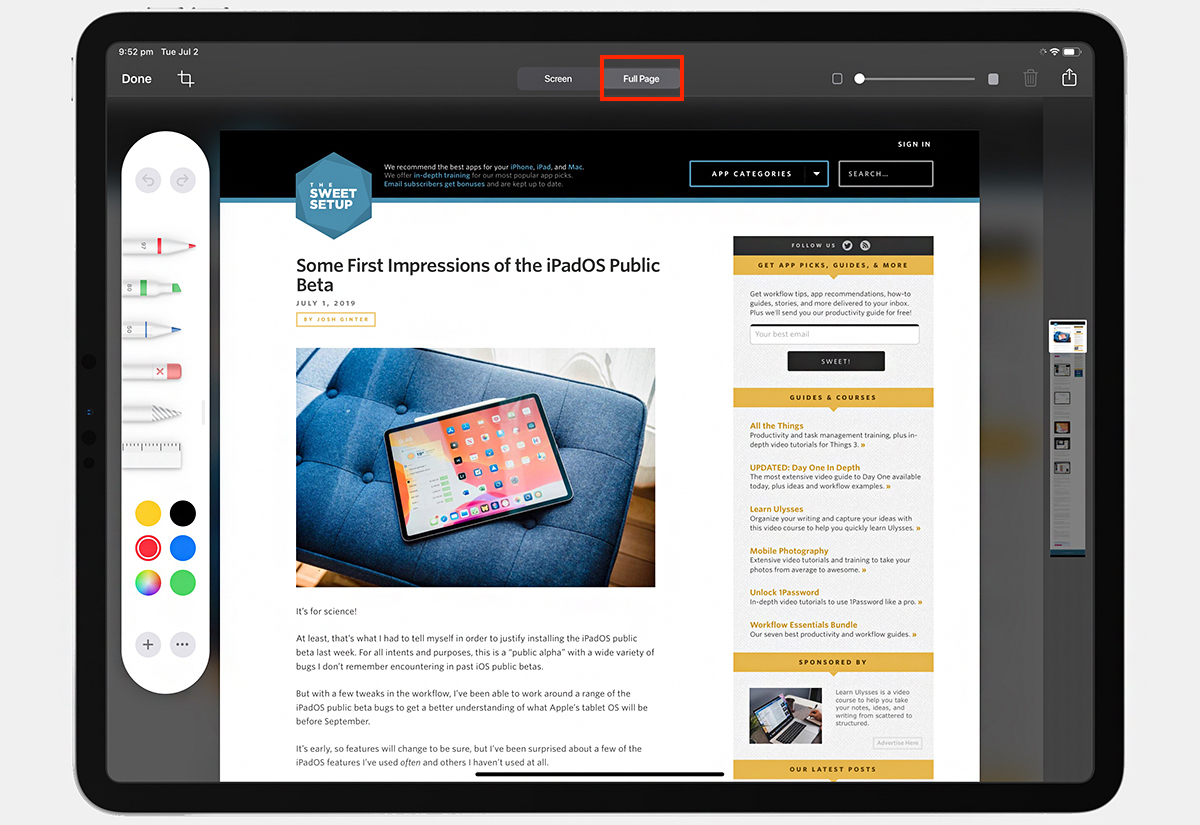
The iPad also allows you to take a screenshot of an entire webpage, document, or email — regardless of its size.
To capture a full page on iPad:
- On iPad, press the Home and Top buttons simultaneously;
- On other iPad models, press the Top and Volume button simultaneously;
- Tap the thumbnail of the screenshot in the bottom-left corner and select “Full Page”;
- Choose Done > Save PDF to Files.
3. Quick Notes

iPadOS has a built-in Quick Notes feature that you can open with a single swipe. Notes are saved in the Notes app and are available on all your Apple devices.
To use Quick Note:
- Swipe on the iPad screen from the bottom-right corner to the center, and to close it — from the center to the right.
4. Split keyboard

This feature allows you to split the on-screen keyboard in two and move the halves wherever you like. It’s especially convenient for typing with both hands.
To split the keyboard on iPad:
- Method 1: While typing, place your thumbs on the center of the keyboard and move them apart to split. To merge it again, do the opposite.
- Method 2: While typing, press and hold the keyboard icon in the bottom-right corner. From the additional menu, choose “Split” or “Merge.”
5. Sidecar – second monitor

With the help of the Sidecar feature, you can turn your iPad into a full-fledged secondary monitor, greatly expanding your workspace.
It can be used both to mirror the main screen and as an additional display.
Together with Apple Pencil, Sidecar screen mirroring turns your iPad into a full graphic tablet.
To connect iPad to Mac:
- Sign in to iCloud on both devices using the same Apple ID;
- Place iPad and Mac next to each other;
- On Mac, open Control Center > Display and select your iPad. If you’re using macOS Catalina, select the iPad from the AirPlay menu.
! To prevent iPad battery drain, connect it to the Mac with a cable.
Always be aware!
Subscribe to the newsletter and be the first to know about new promotions and special offers