

When you first buy a MacBook Air M3 or other recent model, don’t be afraid to customize it — it’s simple. Apple takes care of users in advance: the operating system is already installed, no drivers are required, and the interface is intuitive. But to make the laptop a really convenient assistant, you should pay attention to a few important details. We’ll tell you exactly what to look for below.
How to Turn on a MacBook and Start Activation?
To activate your MacBook, just open the lid. The device will turn on automatically and offer you a step-by-step configuration of important settings.
| Step | What you need to do |
| Interface language | Select a language from the list. For example, English is available. |
| Region | Specify the country — this affects the time format, currency, calendar, and system units. |
| Universal access | Set up scaling, voice input, and gesture control functions. If not needed, skip (can be activated later). |
| Wi-Fi | Connect to your network by entering your password to continue the setup. |
| Data and Privacy | Read how Apple handles personal information and click “Continue”. |
| Synchronization Assistant | If necessary, transfer data from another computer: files, settings, accounts. |
| Apple ID | Log in to an existing account or create a new one: enter your name, email, password, and phone number for confirmation. |
| User account | Create a username and password to log in to the system. |
No matter whether you choose a MacBook Air with an M4 chip or a MacBook Pro with an M1 chip, you’ll have access to basic system settings as soon as you start. You can keep them as they are or customize them to suit your needs. If you don’t want to waste your time now, you can come back to it later.
Personalization: Make MacBook Easy to Use
The first thing to look at is the interface design and how the system acts.
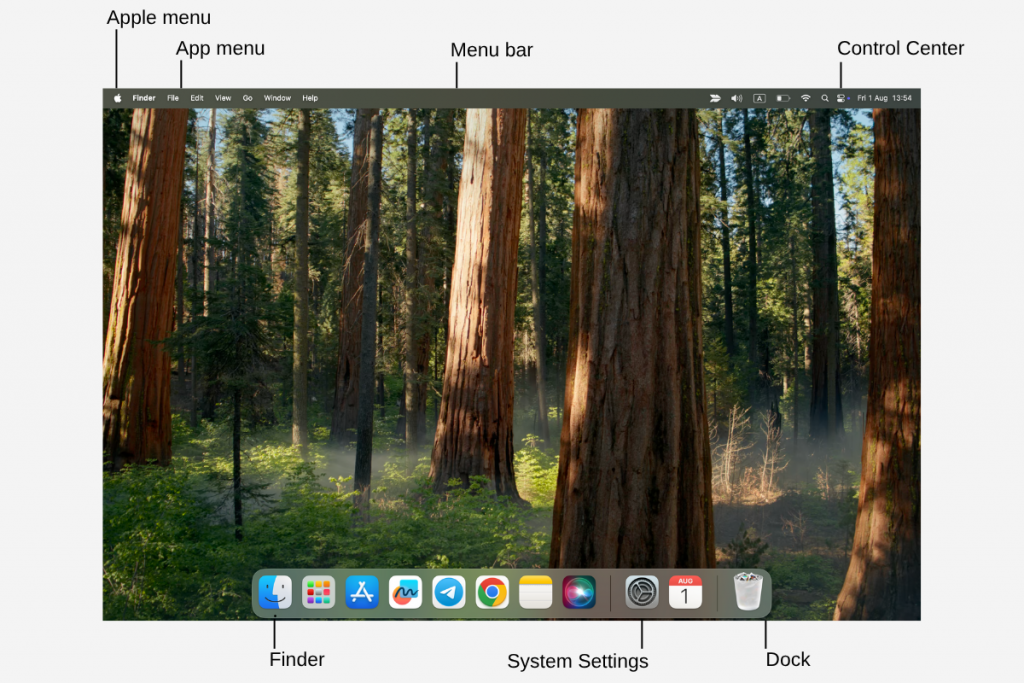
Here’s a list of options that are very easy to customize:
- Dock (bottom panel) — in the “Desktop and Dock” section, you can change the panel position, the pinned applications list, and their look and feel.
- Widgets — add mini-interfaces of the applications you need: notes, weather, calendar, reminders, and others.
- Notifications — choose which ones you want to show and which ones you want to hide.
- Menu bar — in the Control Center, select which icons to show in the top-right corner of the screen.
- Trackpad and Mouse — in the sections with corresponding names, set up gestures, cursor speed, and clicks.
- Touch ID — on models that support the option (like the MacBook Pro M2), set up fingerprint sign-in for fast and secure access.
Customization also affects the wallpaper and screensaver. Install images from a suggested collection, choose a monochrome background, or set your favorite picture — all options are possible.
How to Organize a MacBook to Keep It Clutter-Free?
To keep your MacBook running quickly and smoothly, you should periodically check the storage space and clear out unnecessary files. There are built-in tools for this in macOS. Go to System Settings → Basic → Storage. Here you’ll see how much room is left and which files are taking up more space. Click “Optimize” — the system will suggest deleting old movies and file attachments automatically.
Also, activate automatic trash deletion: files will disappear after 30 days. We advise you to look in the “Downloads” folder via Finder — it is there that forgotten PDFs, archives, and duplicates most often accumulate.
Pay special attention to virtual storage. iCloud allows you to upload data without losing access to it. In the settings, you can choose what types of files to save in the cloud, as well as change the storage size: the first 5 GB is free, next — on a subscription basis.
How to Adjust Text and Select the Right Apps?
Apple tries to make macOS the same for every model, whether it’s the MacBook Pro M4 or the MacBook Air M4. But a truly comfortable system is something you make by customizing the ecosystem to your habits.
Start with the basics. In the Keyboard section, you can turn off automatic word replacement, add your favorite abbreviations, and switch on special characters. And if you want to adjust the text’s visual appearance, go to “Displays”. Here you can change the font size.
The next step is applications. Find everything you need for work, study, and creativity on the App Store. Here are some helpful ideas:
- Notion for notes, knowledge base, and workspace;
- AppCleaner for removing digital trash;
- Microsoft 365 for documents and spreadsheets; and
- Procreate for digital drawing.
But Apple is keeping up as well and offers its easy-to-use tools. For example, there is Freeform for visual notes and ideas.
Summary: Customize a MacBook for Convenience
To keep a MacBook Pro M3 or other model running smoothly, just follow the essentials: install updates, activate FileVault backup and encryption, set a strong password, and turn on locator. Clean your memory once a month, and use a cooling pad when it overheats to prolong the laptop’s lifetime and maximize performance.
You can entrust MacBook system configuration to the iSpace experts. We are the center of Apple expertise in Georgia and can help personalize your laptop. We can customize important settings, explain all the nuances, and find the best options for you. At the same time, you can order accessories for your gadget on our website or buy them in iSpace physical stores.
More on the topic:
How to turn your iPad into a full-fledged laptop: best accessories and settings
How to Delight Yourself and Loved Ones in 2025: Finding the Perfect MacBook
Is a MacBook Suitable for Gaming?
Always be aware!
Subscribe to the newsletter and be the first to know about new promotions and special offers