


Mac computers are thoughtfully designed down to the smallest detail — iconic design, perfect macOS, trackpad with gesture control support, and an ecosystem that completely removes the boundaries between Apple devices.
In today’s blog, we’ll show you 5 interesting and useful Mac features that you might not even know about.
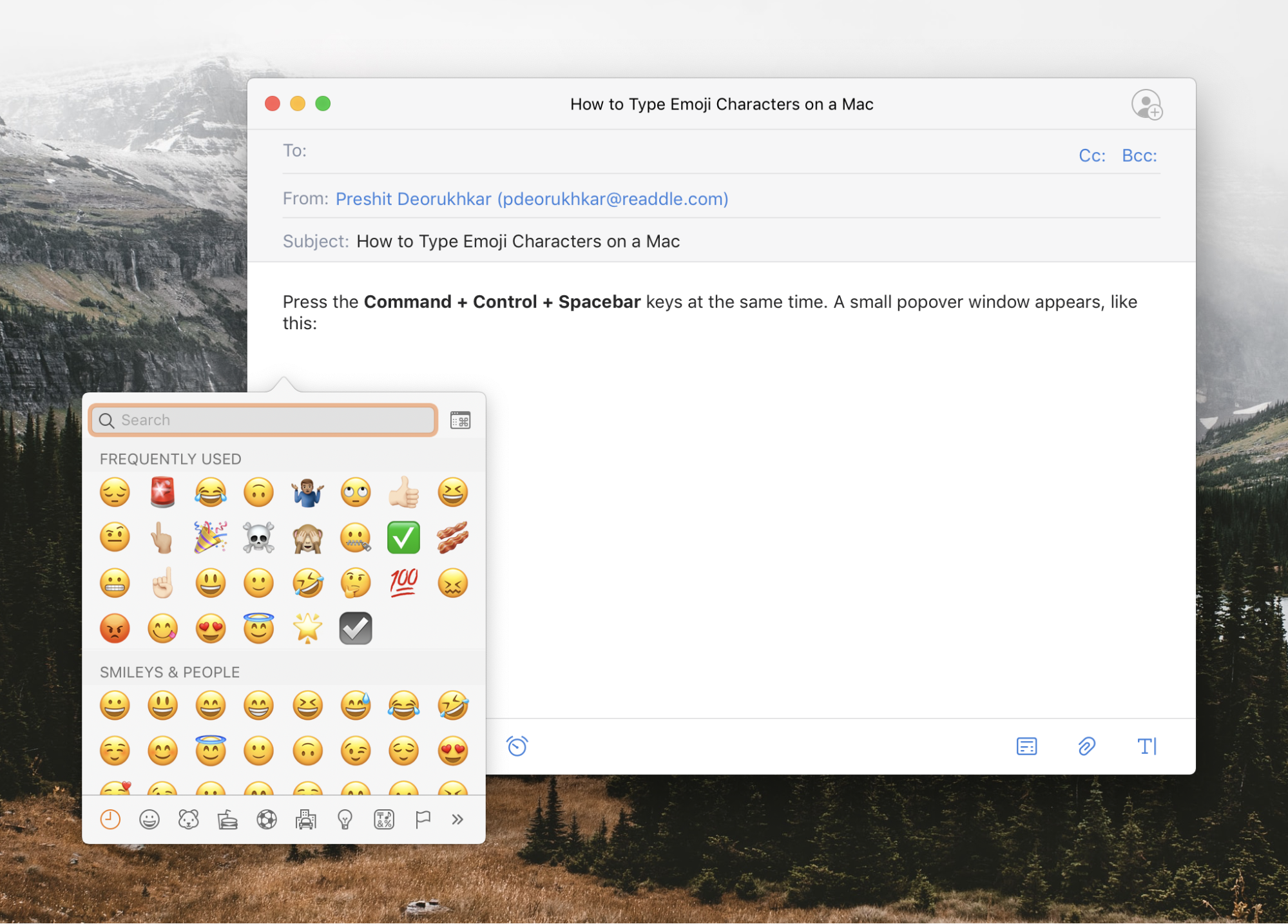
1. Emoji menu on Mac.
Users often ask whether there’s an easier way to use emojis than copying them from social networks or messenger apps.
Of course there is. Simply use the shortcut Control + Command + Space. After pressing this combination, a window will appear with a wide variety of emoji options.
2. Animated Memoji for your Mac profile.
Starting with macOS Monterey, you can set an animated Memoji instead of a static photo for your user profile. Naturally, you can still use a regular photo if you prefer.
To set up an animated Memoji:
- Click the Apple logo in the menu bar and select System Preferences…;
- Choose Users & Groups and select the profile you want to edit;
- In the sidebar, select Memoji – choose an existing Memoji or create a new one by clicking the “+” button;
- After selecting a Memoji, use the “Pose” tab to adjust facial expressions as you like (use the slider to zoom and “Style” to change the background color);
- When done, click “Save.”
Next time you log into your account, your animated Memoji avatar will appear. Moreover, if you enter your password incorrectly several times, the Memoji will look irritated at first — and then angry.

3. Spotlight – more than just file search
With Mac’s Spotlight search, you can find almost any file on your device. To use it, click the search icon in the macOS menu bar and type text from the document you’re looking for.
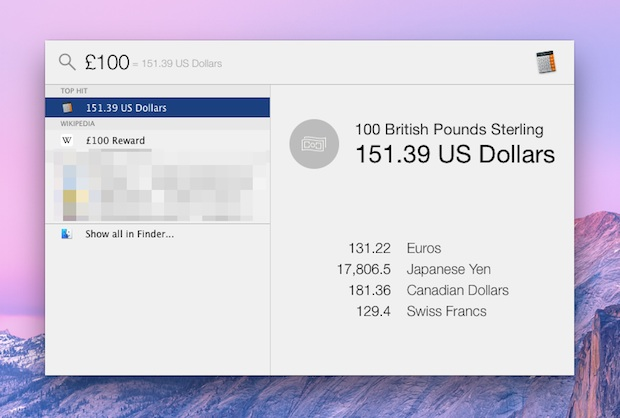
Spotlight can do much more than search for files and phrases. It can calculate and convert values and currencies.
Simply type any number into the field, add a unit (for example, “25 C” for Celsius), and Spotlight will instantly convert it to Fahrenheit or Kelvin. The same applies to other units (kilometers, miles, dollars, kilograms, etc.).
! When searching for an exact phrase, put it in quotation marks. This makes the system look for that exact word combination.
4. Better control of screen brightness
Normally, users adjust Mac brightness with the keyboard keys — it’s quick and convenient. But there’s also a way to control brightness more precisely.
Use the combination “Option + Shift + Brightness key.” Brightness will now change in smaller, smoother steps instead of big jumps.
! The same key combination also works for adjusting volume.

5. Dictation
This feature is especially useful for students and anyone who frequently attends business meetings, seminars, or conferences.
It eliminates the need to type unnaturally fast — the system will automatically transcribe everything you say. Simply place your cursor in a text document and double-press the Control key.
To enable Dictation:
- Open System Preferences > Keyboard > Dictation;
- Turn the feature on and set your preferred activation shortcut.

Of course, there are many other interesting and useful Mac features that we’ll cover in future blog posts.
Follow our blog and stay connected on Instagram.
Always be aware!
Subscribe to the newsletter and be the first to know about new promotions and special offers