

If you have ever forgotten where you put your phone or lost your gadgets, this article is for you. Sometimes everything can be resolved in a couple of minutes because your laptop or smartphone is in the next room. But if the device was left on public transport, at work, in a movie theater, or in other public places, the chances of getting it back are slim. The problem can be solved with the help of “Find My,” which is built into many Apple gadgets. In this article, we’ll look at how the app works on MacBook, iPad, and Watch.
What is Find My?
The Find My app is a built-in Apple service used to locate devices, people, and items. What else can the app do:
- remotely play a sound on the device;
- activate Lost Mode to lock the device;
- erase data to protect privacy.
You can also add the devices of family and friends to the app to know their location or share your geolocation. AirTags, which are usually attached to keys or suitcases, can also be tracked through this service.
How do I Add my MacBook to Find My?
You don’t need to install the app on your MacBook—it’s already included in macOS by default.
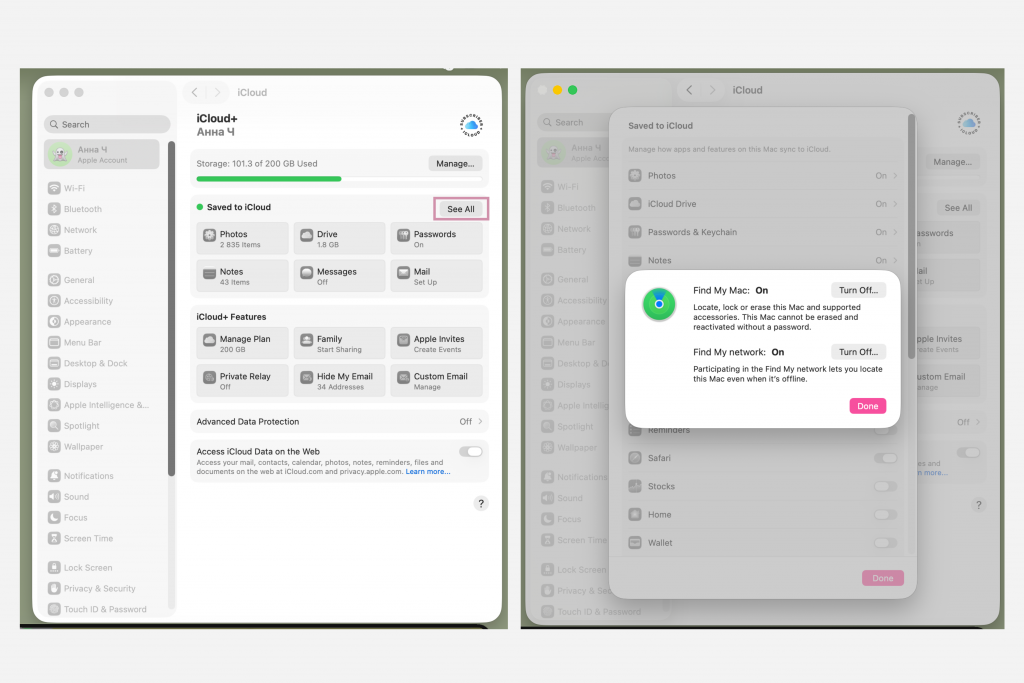
To do this, you need to start it in advance by following a few simple steps:
- Go to System Preferences.
- Click on your name in the upper left corner.
- Go to iCloud and click on the See All tab.
- Select Find My Mac.
- Click Turn On.
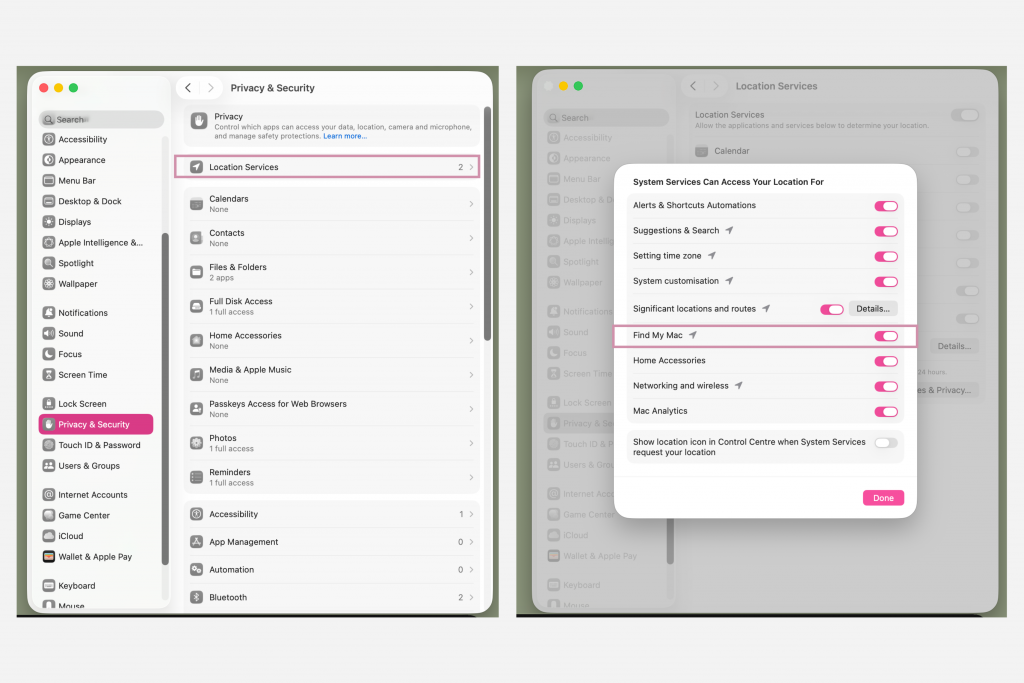
To search for devices on the map, you need to enable “Geolocation Services” in the “Privacy and Security” settings. If the desired program is not in the available list, click ‘Next’ and select “Find My Mac.”
How to Add an iPad?
On a tablet, the program is activated in the same way through the system settings. Tap on your name in the system settings and select “Locator.” Then click on the “Find iPad” tab and activate this feature.
To be able to find your gadget without an internet connection, you need to activate “Locator Network”. To send location data when the tablet is almost out of battery, enable the “Last Geolocation” option.
You can attach the Apple Pencil Pro stylus in the same way. In the program settings on the tablet, select the “Device” menu, click on the plus sign, and follow the instructions.
How Do I Activate the App on Apple Watch?
To add your watch to the Find My app, connect it to your smartphone or tablet. Then follow these steps:
- Open Settings on your smartwatch.
- Tap your account name and scroll down until you see your model.
- Tap the name of your gadget and go to the “Find My Watch” menu.
- Connect to the “Finder Network.”
After that, you will be able to view the geolocation of your device and quickly find it if it is lost.
What to Do If Your Device is Lost?
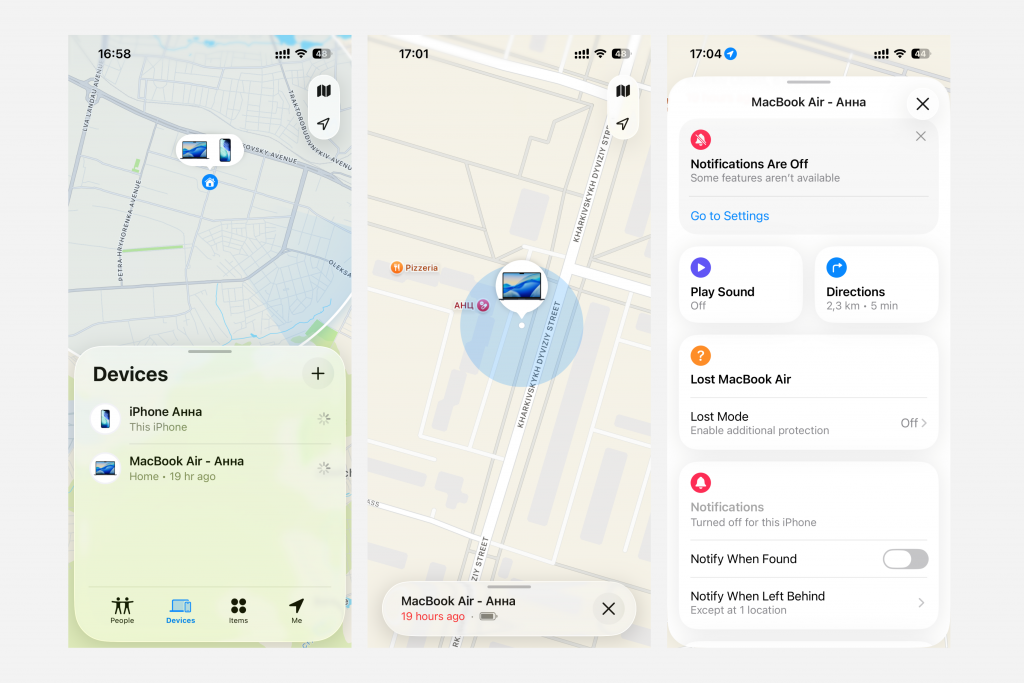
To find your lost gadget using the built-in app, you need to open this program on another device of the same brand or go to the iCloud website. In the first case, you need to:
- in the gadget search app, go to the “Devices” tab;
- select the device you want to find from the list;
- determine the location on the map where the device was last used;
- launch the “Play Sound” option if the device is nearby.
If you are unable to find your device this way, it makes sense to activate the “Mark as Lost” option to lock the device. And if you want to delete all the information from it, select the “Erase This Device” function.
You can also find lost devices via the link iCloud.com/find. Log in to your account, click “Find My Device” and select the required model.
What Should You Do If Find My iPhone is Not Set Up?
If you have not connected a specific gadget model to Find My iPhone, you will not be able to track it this way. In this case, it is important to change your Apple ID password and the passwords for services linked to your account as soon as possible: social networks, online banking, and email.
It is also recommended to remotely (via iCloud) erase all data from the device and lock it if possible. If the gadget has been stolen, after completing these steps, you should contact law enforcement and file a theft report.
If you still have questions, contact the iSpace experts in Georgia. They will help you connect all the services necessary for your security.
FAQ
Can I find my device if it is turned off?
You can find a turned-off gadget if “Find My Network” is enabled on it. This option uses all Apple devices that are near your device: both yours and others’. They transmit an encrypted signal and help determine the last known location.
How does “Locator” differ from “Find My Device”?
The first app is used to find Apple devices, while the second is designed to find smartphones, headphones, and other gadgets that run on Android or Windows. They also work differently: the first program can search for gadgets offline, while Find My Device requires an internet connection.
Can I use the app without the internet?
Yes, the developers have made it possible to search for a gadget without an internet connection. To do this, you need to activate “Finder Network” in advance, and in case of loss, use other gadgets or iCloud, where you can see the last location of the device.
How does “Erase this device” differ from “Mark as lost”?
The “Erase Device” option allows you to completely delete all data from the gadget — it is recommended to use it in case of permanent loss of the device. Whereas “Mark as Lost” is a blocking feature. It can be used to protect your personal data while you search for your phone, laptop, or smartwatch.
Check out more
How to Turn an iPad into a Laptop: Changing Settings and Finding the Best Accessories
How to Use a MacBook: Path from Setup to Customization
MacBook Pro 14 2025 Review: What’s Surprising About Apple’s New Product
Always be aware!
Subscribe to the newsletter and be the first to know about new promotions and special offers