

There are several common reasons why a MacBook may stop working: a discharged battery, a software error, a damaged power cable, or liquid getting inside the case. Here is what you can try to do on your own:
- Make sure the power adapter, cable, and outlet are working properly.
- Press and hold the power button for about 10 seconds, then try starting the laptop again.
- Disconnect any connected devices and accessories.
- Open macOS Recovery mode and perform system recovery.
If the device still shows no signs of life, the issue may be related to the hardware, so it is better to contact an authorized service center. If you are planning to replace your Mac with a current model, order original Apple devices at iSpace.
Main Reasons Why a MacBook Won’t Turn On
If your laptop won’t turn on, the issue may be related to a discharged battery or power supply problems. Start by checking the outlet, adapter, cable, and port. Other common reasons include:
- a system error that prevents macOS from completing startup;
- a conflict with connected devices;
- faulty device components.
In many cases, you can handle the issue yourself and fix the error within a couple of minutes.

Step-by-Step Actions
If your Mac is not working, do not panic. Apple has a simple troubleshooting sequence:
- First, check the power supply. Inspect the cable and adapter, then try plugging the device into a different outlet.
- Leave the device charging for a couple of hours. If it has not been used for a long time, the battery may be deeply discharged.
- To force shut down the laptop, press and hold the power button for 10 seconds, release it, then turn it on again with a normal press.
- If there is no result, disconnect external devices such as flash drives, USB hubs, storage drives, and monitors, then try starting it again.
- If the laptop turns on but the system does not load, use macOS Recovery. To do this, press and hold the power button until the startup options window appears, then open “Options” and follow the on-screen instructions.
- You can also check the startup disk through Recovery. Open Disk Utility, select Macintosh HD, and run First Aid. If the system still does not start after that, try reinstalling macOS.
If none of these methods helps, it is worth contacting a service center for diagnostics.
MacBook Stuck on the Apple Logo: How to Fix the Issue
If startup stops at the Apple logo, it means the operating system is trying to load but cannot complete the process because of background conflicts. In this case, the same actions may help: force shutdown, disconnecting accessories, and starting the laptop through Recovery Mode.
Specific Issues: Model Guide
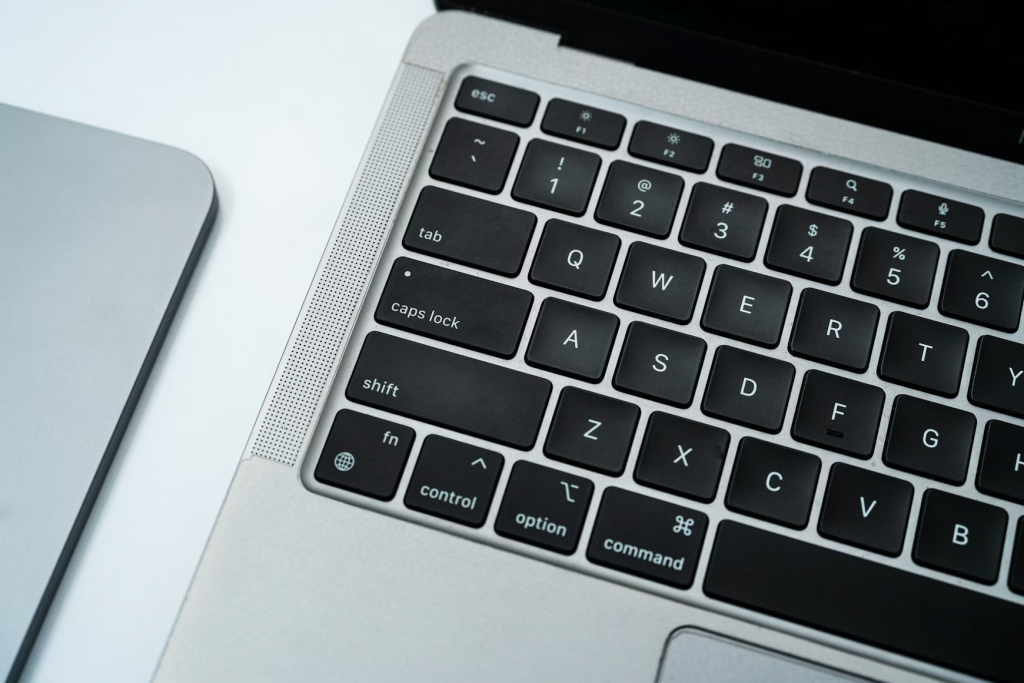
For devices with Intel processors, you can reset the SMC when power-related issues occur. SMC controls certain hardware parameters. Press Control + Option + Shift at the same time and hold them for 7 seconds. Then, without releasing the keys, press and hold the power button for another 7 seconds. After that, release all keys and turn the laptop on again.
On models with Apple Silicon processors, such as the M-series, a simple restart is usually enough — the SMC reset option is automated here.
Maintenance and Prevention Tips
To help your MacBook work more stably and reduce the risk of errors, follow a few simple rules:
- connect original cables and adapters;
- install macOS updates regularly;
- monitor the battery condition and enable Optimized Battery Charging.
Make it a habit to restart your computer regularly instead of simply leaving it in sleep mode. This helps clear memory and reduces the chance of software errors building up.
If Your MacBook Still Won’t Turn On
If the standard recommendations do not help, diagnostics are needed. In Georgia, iSupport in Tbilisi has authorized service status and is located at 12 Sulkhan Tsintsadze Street. The engineers will quickly determine why your Mac is not working and offer solutions.
If you want to upgrade your device to one of the latest versions, visit iSpace. In our physical stores in Tbilisi and Batumi, you can test the devices in person. Online orders are available with delivery across Georgia. If you have any questions, our experts are always ready to help.
FAQ
How do I force-start a MacBook?
Press and hold the power button for 10 seconds. Release it, then press it once normally to start the device.
What should I do if my MacBook does not respond to the power button?
Check the power connection, power adapter, and charging cable. Try plugging the device into another outlet. Leave it charging for a while.
How do I perform a force restart?
Press and hold the power button for 10 seconds until the device turns off completely, then turn it on again.
What should I do if my Mac does not wake from sleep mode?
Try pressing any key or clicking the trackpad. If the screen remains black, perform a force shutdown.
How do I restart a MacBook using the keyboard?
The Control + Option + Command + power button combination shuts down the device. If you press it without Option, the system will not ask whether to save documents.
What is the average lifespan of a MacBook?
The devices themselves are durable. With regular use, Apple laptop batteries can last 5–7 years or longer, after which they need to be replaced.
Why is my Mac screen black even though it is turned on?
The issue may be related to a software error. Try holding the power button for 10 seconds, then turn the device on again.
Check out more
Mac mini for AI: How to Turn a Compact Computer into a Local AI Center
Migration from Mac to Mac: Data Transfer Rules
Multitasking in macOS: How to Split the Screen on a MacBook for Maximum Productivity
Always be aware!
Subscribe to the newsletter and be the first to know about new promotions and special offers