
When you switch to a new Mac, the question of data transfer becomes especially important. After all, you want to avoid manually reinstalling apps while keeping your settings, passwords, and files. Mac owners can easily do this. We have prepared a guide that will help you transfer apps, documents, and system settings between Apple devices.
Why Should You Be Careful About Migration from Mac to Mac?
Moving between devices involves transferring photos and personal files, accounts, passwords, access permissions, and system settings. But due to certain nuances, such as different processor architectures, files may not open.
Data Loss or Corruption
Information may be lost or damaged if the process ends incorrectly because of errors. For example, if Wi-Fi is unstable, migration may freeze or stop completely.
If you use the “Optimize Storage” option in iCloud, keep in mind that it may lead to file loss during migration. When you enable it, the file itself does not remain on the MacBook or iMac — only a placeholder does. On the new device, the file will appear only if you sign in with the same Apple ID and sync the cloud.
Difficulties with Transferring Apps and Settings
Software on Mac is often linked to an account or license. For example, an Adobe Photoshop license limits the number of devices. We recommend signing out of the app account and deactivating authorization on the old device, and then “activating” it on the new one.
How to Prepare for Migration: What Should You Know Before Starting?
Prepare the devices before starting migration. This will take a couple of minutes but help avoid unnecessary problems during the process:
- update macOS on the old computer to the latest version;
- connect both devices to the same network;
- alternatively, use a Thunderbolt or USB-C cable.
If you choose Wi-Fi, place the devices close to each other.
Create a Backup
Prepare a copy of your files. The OS has a built-in automatic backup system called Time Machine — launch it.
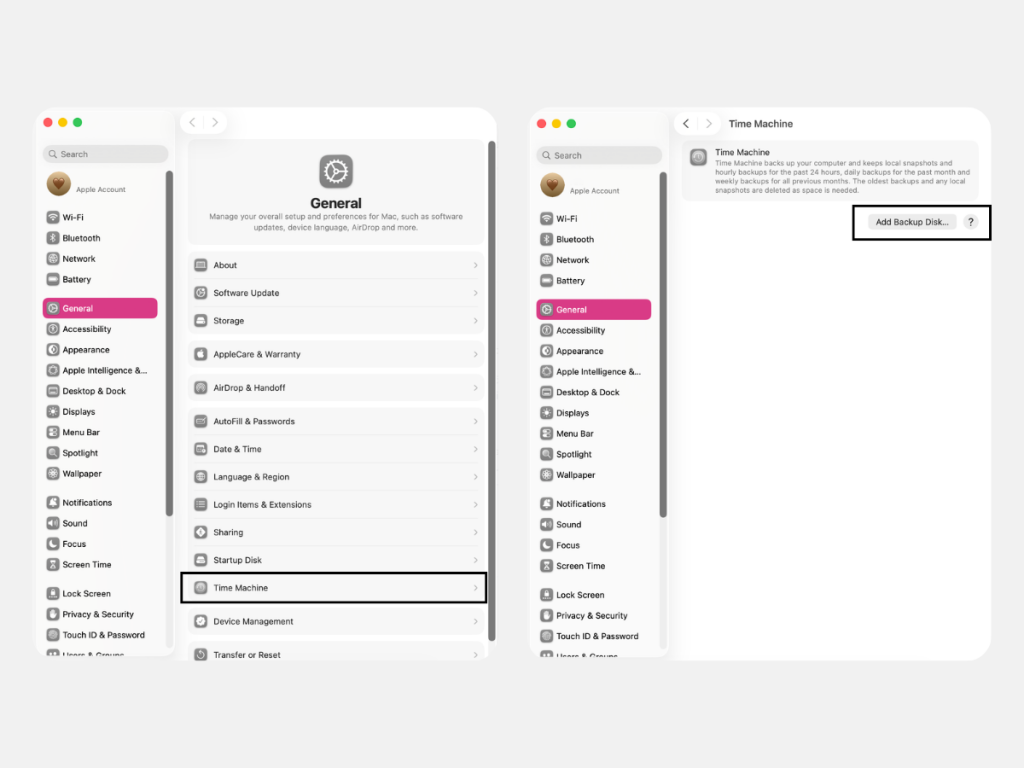
It is better to transfer critical information manually. This will help preserve it in case the files are damaged. Such an outcome is unlikely, but it is still worth preparing for.
Checking Data and App Compatibility
If the processor architecture changes, for example, if you are moving from Intel to Apple Silicon, apps may not install correctly. To avoid this, check the app information through Finder. You need the description to say “Universal” or “Apple Silicon.”
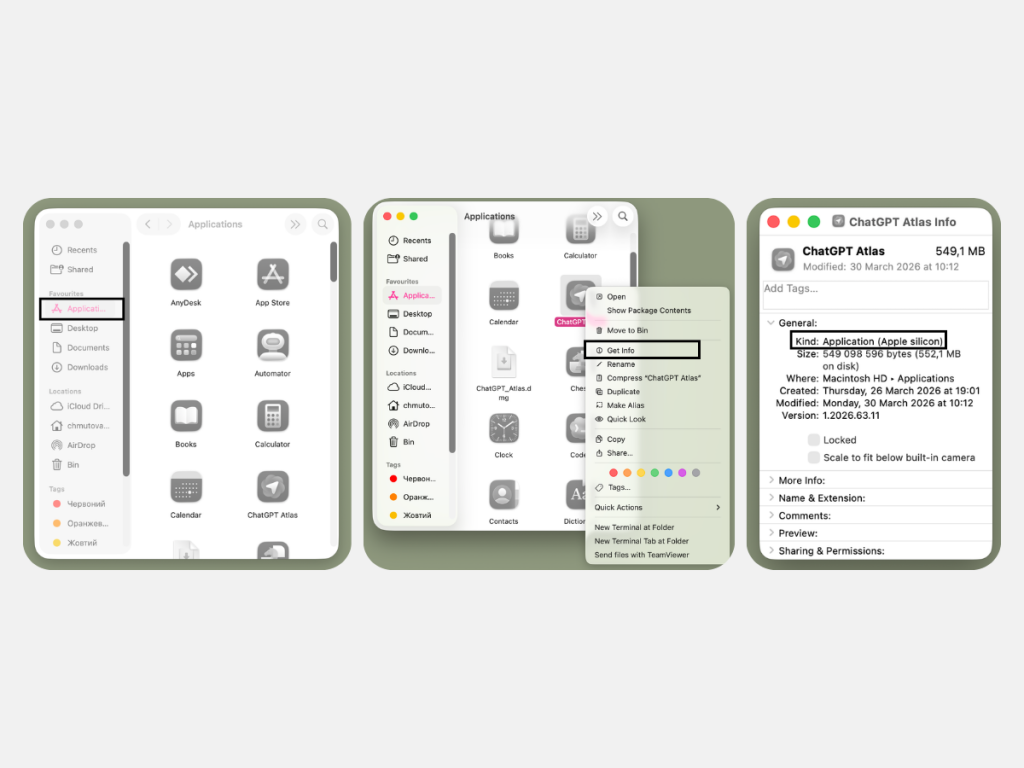
Older apps designed for Intel run on modern Macs through Rosetta. But limitations may sometimes appear. To avoid them, it is better to download the software from the App Store or directly from the developer’s website right away instead of transferring it.
How to Use Migration Assistant to Transfer Data?
Apple has made sure you do not have to copy everything completely manually. Apple Migration Assistant was developed to transfer information from a MacBook or iMac.
What Is Migration Assistant?
“Migration Assistant” transfers documents, photos, apps, accounts, and system settings from the old device. It integrates the copied files and settings into the already installed OS, but does not change it or delete materials from the sending device.
How to Launch and Set Up Migration Assistant?
“Migration Assistant” is a system utility, and you need to find it through “Applications” or Spotlight.
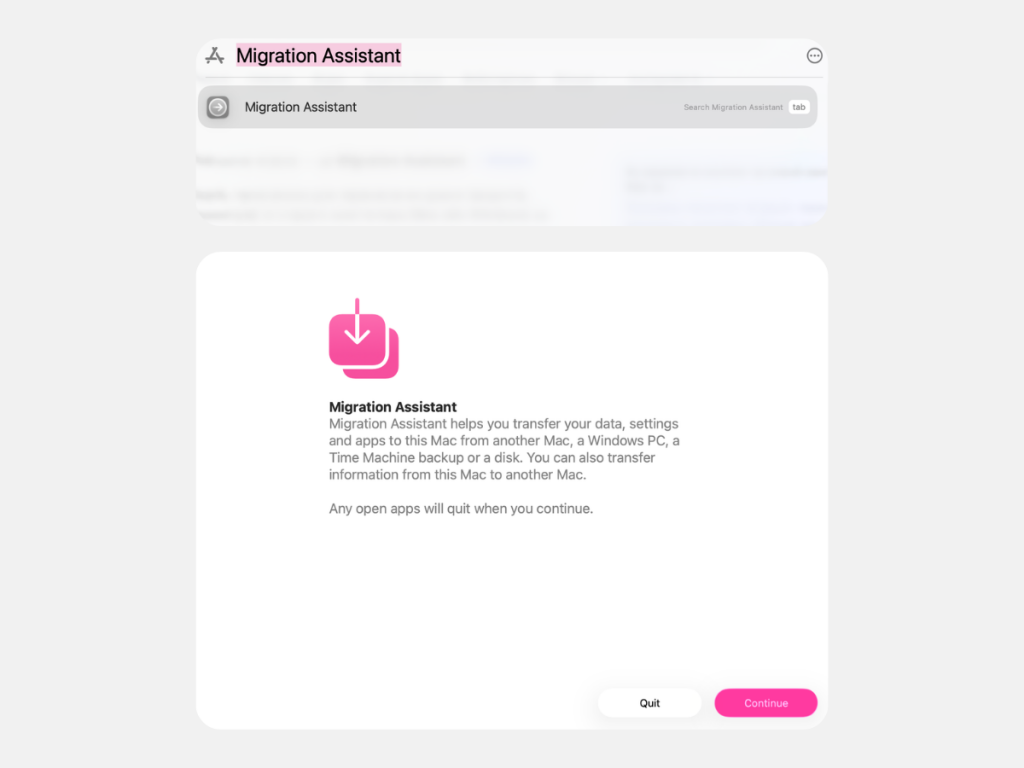
Sequence of Steps After Launching the App:
- Enter the administrator password on the sending device and confirm the action.
- Select one of the options: materials from a MacBook, a Time Machine backup, or a backup disk. Click “Continue.”
- Make sure the security code on the receiving device matches the code on the old device. Click “Continue.”
- Select the information you want to transfer.
When the process is complete, close the apps on both devices.
Common Problems During Migration from Mac to Mac
When using Migration Assistant, the likelihood of problems is minimal. However, errors may occur if the devices run different versions of macOS or are connected to different Wi-Fi subnets. Even if the progress bar freezes for a while, it is better not to interrupt the migration process.
If you have problems transferring materials, contact the experts at iSpace — Apple Premium Partner in Georgia. By the way, in our physical stores in Batumi and Tbilisi, as well as in the online store, you can upgrade your Apple devices with benefits by using Trade In and the loyalty program. Delivery across the country is available.
FAQ
How Do You Transfer Passwords and Accounts to iCloud?
Mac has a built-in password manager called “iCloud Keychain” for securely transferring passwords and accounts. Make sure the “Passwords and Keychain” section is checked on the old device, then sync the data. On the new device, sign in to your Apple ID and confirm the action so the manager transfers passwords in Safari, credit card details, and Wi-Fi keys.
Do You Need to Transfer All Apps from the Old Mac?
If you have barely used some software, transferring it is not necessary. And when moving to a new architecture, from Intel to Apple Silicon, it is better to download the latest versions from the App Store.
How Can You Complete Migration Quickly When Time Is Limited?
You can speed up the process by using a cable — Thunderbolt or Type-C. If you have little time, you can skip transferring software and large multimedia files, such as photos or movies.
View All Mac Models
Check out more
Best Laptops for Studying in 2026: How to Find the Ideal Model
Multitasking in macOS: How to Split the Screen on a MacBook for Maximum Productivity
MacBook Air With the M5 Chip — A Major New Release of the Year
Always be aware!
Subscribe to the newsletter and be the first to know about new promotions and special offers