

If you are wondering how to switch from Windows to Mac without unnecessary complications, Apple has an ideal device for getting started. The MacBook Neo is an excellent first Apple ultrabook: it is lightweight, silent, and offers long battery life. Its display is comfortable to use, while Apple Intelligence and the full range of Apple tools are also supported. The device is suitable for studying, working, watching films, and playing fast-paced games.
Getting used to macOS does not take long. You only need to explore the interface, learn the new keyboard shortcuts, and install the applications you need. Below, we explain in more detail how to get comfortable with a MacBook quickly and where to find alternatives to familiar software. For any remaining questions, contact the iSpace experts for advice. The team is always ready to help.
MacBook Neo: An Apple Laptop for Beginners
The MacBook Neo is suitable for users who are just discovering the Apple ecosystem. It is a practical choice for everyday tasks, including:
- work and study;
- documents, spreadsheets, and presentations;
- browsing the internet;
- video calls and communication;
- watching films and YouTube videos;
- basic graphics editing.
Performance is powered by the smartphone-class A18 Pro chip, which supports multitasking and Apple Intelligence features. The passive cooling system keeps the laptop quiet and prevents excessive heat.
Battery life reaches up to 16 hours during video playback. This makes the MacBook Neo suitable for a full day of work, study, or entertainment away from a power socket.

What Difficulties Can Arise When Switching from Windows to Mac?
Having doubts about moving between operating systems is completely normal. Users are most often concerned about the following:
- having to learn how to use a computer again;
- losing access to familiar and essential applications;
- facing technical difficulties;
- finding the interface confusing;
- having to pay for every application they need.
In reality, macOS is simple and carefully designed. It includes familiar elements such as files, windows, a desktop, and folders.
Some details are different. For example, the close button is located on the left side of a window, while Ctrl in most keyboard shortcuts is replaced with Command (⌘).
Setapp for Finding and Installing Alternatives to Familiar Windows Apps
Another common concern before switching from Windows to Mac is that all the applications will be completely different. In reality, this is not entirely true. Apple has its own software, which may look different, but the basic logic remains familiar.
What Is Setapp, and Why Is It Useful for New Mac Users?
Setapp is a subscription-based platform developed by MacPaw. It works like Netflix, but for applications.
The platform provides a comprehensive library of trusted software for various tasks, including organising work, creating documents and spreadsheets, and editing photos and videos. There is no need to purchase a subscription straight away, as Setapp offers a seven-day free trial.
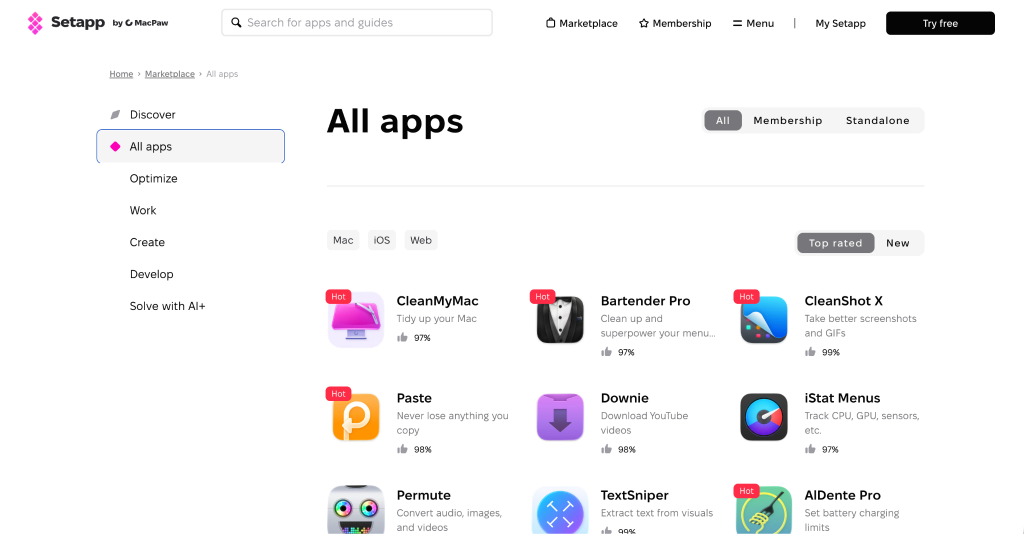
How to Download Apps from Setapp
The interface is straightforward and similar to many app stores. To download an app from Setapp, follow these steps:
- Register on the official Setapp website and download the macOS installer to your MacBook.
- Open the downloaded file and drag the Setapp icon into the Applications folder to install it.
- Launch the Setapp app and sign in to your account.
- Find the app you need using the search bar or the full app list.
- Click Install on the selected app’s page. It will be installed on your Mac automatically.
The first three steps are only required once. After Setapp has been installed on your Mac, you only need to repeat steps 4 and 5.
What Should You Install on a MacBook First?
Once you have become familiar with the interface and learned how to transfer files from Windows to Mac, you can move on to software. The device already includes many standard applications that are sufficient for everyday tasks. You can also install:
- office applications — Microsoft Office, including Word and Excel, is suitable for editing documents and analysing data. However, it is worth exploring Apple’s pre-installed iWork suite first, which includes Pages, Numbers, and Keynote and offers similar functionality;
- browsers and messengers — Safari consumes less battery power, while Google Chrome can be installed as an additional browser. Telegram, WhatsApp, and Slack are useful for communication;
- cloud storage services — activate iCloud Drive or use a third-party service such as CloudMounter to synchronise work files across devices;
- password managers — the built-in Keychain utility securely stores login details, while Secrets 4 is available as an alternative;
- file management tools — Archiver is useful for extracting archives, while Commander One can serve as a file manager;
- note-taking and planning applications — the standard Notes app supports fast synchronisation with an iPhone and iPad, while 2Do can be used for planning;
- photo and video editing software — CameraBag Pro is suitable for retouching images and colour correction, while SwiftShip Previews can be used for video editing;
- system cleaning and monitoring tools — CleanMyMac helps remove accumulated cache files with a single click.
Start with simple applications that cover your essential needs. You can then explore other available software, including subscription-based tools, and decide what to install on your MacBook for a more comfortable experience.

Is It Worth Switching from Windows to a MacBook Neo?
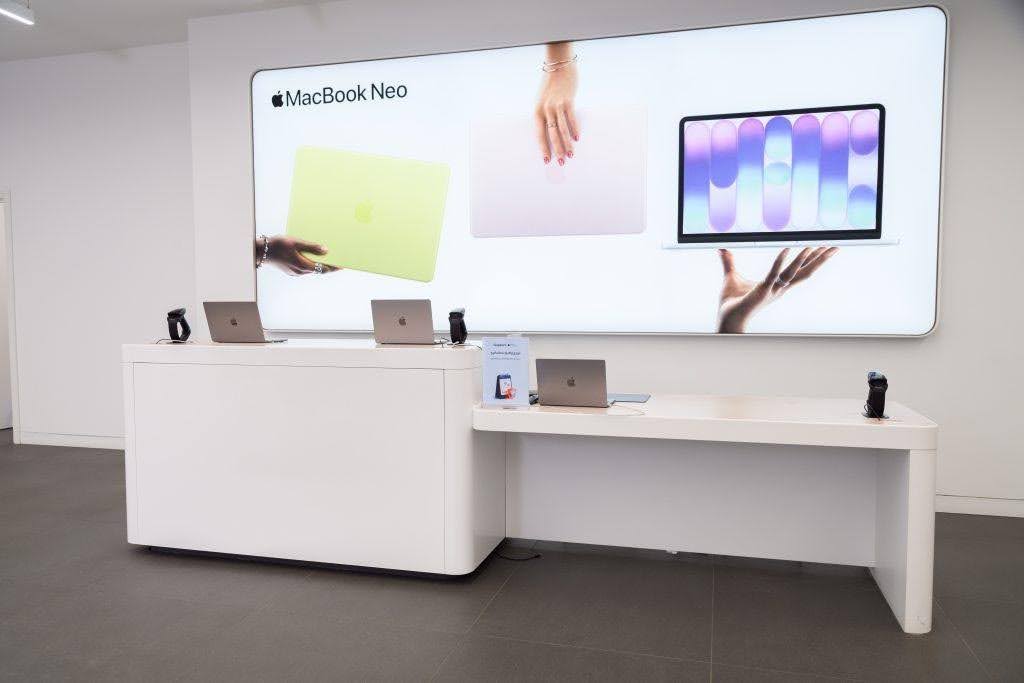
Replacing your familiar laptop with a MacBook Neo is a practical decision. It has a simple interface, a bright display, and a long-lasting battery. It is an excellent choice as a first Apple ultrabook. The MacBook Neo also comes in unusual colours: vibrant Blush and Citrus complement the classic Indigo and Silver finishes, giving the device a striking look.
Would you like to test the new device in person? Visit iSpace, an official Apple Premium Partner in Georgia. At the physical stores, you can explore the latest MacBook Neo models and consult the experts. You can also order a device directly from the website. For assistance, contact iSpace by phone or through the online chat.
Trade In, credit, instalment payment options, and fast delivery are available. For professional maintenance, contact an authorised iSupport service centre.
FAQ
Why Is the MacBook Neo Ideal for Switching from Windows?
The device combines a relatively affordable price, the energy efficiency of the A18 Pro chip, and a silent design. Its intuitive operating system also minimises the time needed to adapt.
Who Are Switchers?
Switchers are users who decide to move from one operating system to another, such as from Windows to macOS.
What Advantages Does the MacBook Neo Offer Switchers?
Switchers will appreciate the MacBook Neo’s battery life of up to 16 hours, lightweight metal body, Liquid Retina display, and support for Apple Intelligence technologies.
Do Windows Utilities Work on a MacBook?
.exe files cannot be launched directly. However, many developers offer separate versions of their applications for macOS.
Can Windows Be Installed on a MacBook Neo?
Unlike Intel processors, Apple chips do not support Boot Camp. If you need to use Windows, virtualisation tools such as Parallels Desktop are available.
What Is the MacBook Neo Designed For?
The device is suitable for working with documents, spreadsheets, and presentations, as well as video conferences, watching content, and basic photo editing.
Check out more
How to Reinstall macOS: A Step-by-Step Guide
How to Fix a MacBook That Won’t Turn On: A Step-by-Step Guide
Always be aware!
Subscribe to the newsletter and be the first to know about new promotions and special offers