
With Apple devices, your child can stay connected while you have greater peace of mind. Apple places strong emphasis on digital safety. You can set up parental controls on an iPhone through Family Sharing, receive location and movement notifications, manage Screen Time, and protect your child from inappropriate content.
Upgrade your devices before the new school year at iSpace, an Apple Premium Partner in Georgia.
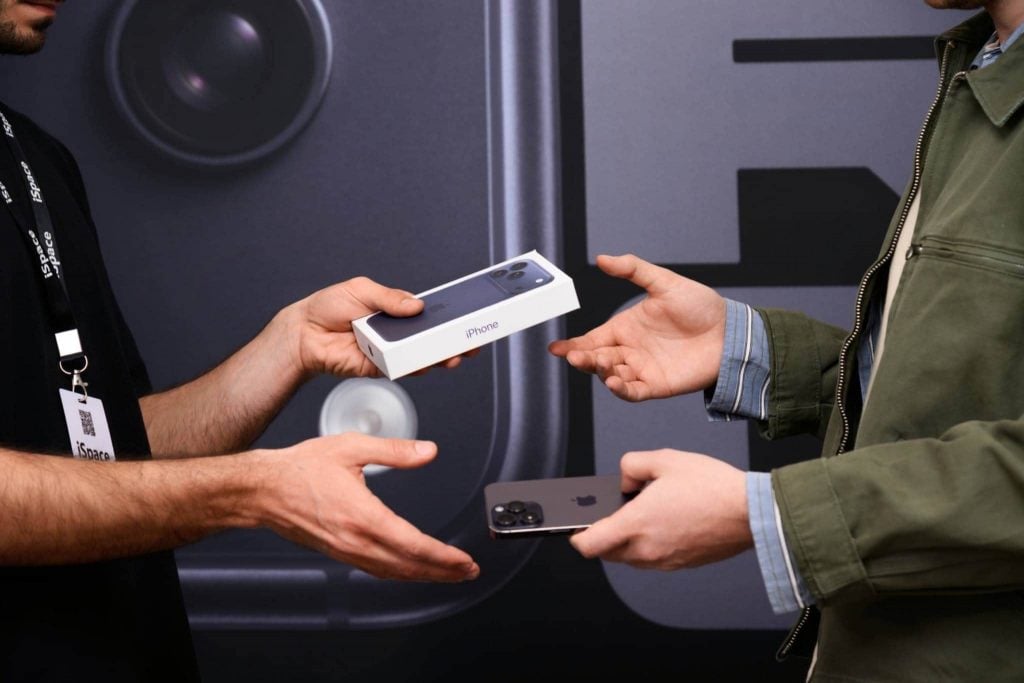
Why Is iPhone Convenient for Both Parents and Children?
If your child needs a reliable device for calls, games, messaging, and internet access, iPhone is a strong choice. Apple offers both entry-level and Pro models, making it easy to choose one based on your needs and budget. Children often appreciate the status and performance of the iPhone, while parents value its built-in safety features. These include:
- Filtering inappropriate content. The system can block 18+ websites and restrict content with explicit language, helping prevent children from accessing adult material.
- Setting limits for device and app use. You can limit Screen Time for games and restrict access to certain device features at night or during study hours.
- Managing App Store purchases to prevent accidental spending. Your child has to send a request to a parent’s iPhone whenever they want to buy something in an app.
- Tracking the phone’s location on a map. The Find My app shows the child’s device location in real time, so you can see where your child is.
- Features that help protect hearing and eyesight. You can limit the maximum headphone volume, while Screen Distance reminds your child to move the phone farther away if it is held too close to their eyes.
With Family Sharing, you can combine up to six Apple ID accounts, including child accounts, into one group. It is easier to set up an iPhone account for a child from a parent’s device; read the detailed instructions here.
Choose an iPhone model for a pupil at iSpace:
Произошла ошибка проверьте шорткодParental Controls: How to Set Up Screen Time and Restrictions on Your Child’s iPhone
Parental controls let you set rules for device use in advance. For example, you can add content restrictions on iPhone or set Screen Time limits. The settings remain flexible, so you can adjust them as your child gets older or during school holidays. Here is how to set up parental controls:
- Create a child account in Family Sharing by adding a new member under “Settings” → Apple Account → “Family.”
- Open “Screen Time” and then “Downtime” to set a schedule. For example, you can restrict access to games before bedtime.
- Create a Focus mode for sleep and rest. In the evening, the device can automatically limit access to selected features and help your child follow a daily routine.
- Use Focus mode for studying as well. To set up a Study mode, link it to the school timetable or the school location. During this time, only important calls and study widgets will remain available.
- Check the “Always Allowed” section. It is best to keep access to calls and messaging even when Downtime is enabled.
After a week, review the iPhone usage statistics in Settings. Go over the restrictions with your child and adjust the schedule to find a comfortable routine.
How to Block Inappropriate Content and App Store Purchases
Setting content restrictions on iPhone is simple. Go to “Content & Privacy Restrictions” through “Settings,” “Screen Time,” and “Family.” There, you can hide videos and music with unsuitable age ratings and restrict access to inappropriate websites.
Open “iTunes & App Store Purchases” to separately restrict app purchases, installation, and deletion. You can also block in-app purchases there. It is a good idea to add your child’s iPhone account to Family Sharing so that you, as the parent, can approve or decline purchases. Before buying anything, your child will need to send a request to the parent’s device using Ask to Buy.
How to Receive Notifications About Your Child’s Location
In Find My, you can set notifications for when your child arrives at or leaves a selected place, such as school or home. For this to work correctly, Location Services must be enabled on the child’s device, and the child’s Apple Account must be added to the family group. Here is what to do next:
- Open Find My on your iPhone and select your child’s profile.
- Go to “Notifications” → “Add” → “Notify Me.”
- Choose the event that should trigger a notification, such as arriving at a specific location.
- Set the required location.
Make sure notifications from Find My are enabled on your iPhone; otherwise, they will not appear on the screen. You can check this in Settings under “Notifications.”

How Can Apple Watch Give Parents Greater Peace of Mind?
Use Apple Watch as an additional device for your pupil’s communication and safety. The smartwatch can also track your child’s location and display messages and reminders from their iPhone. It also includes an emergency calling feature. By pressing and holding the side button, your child can contact emergency services.
Choose the right Apple Watch model and size at iSpace:
How to Protect Your Child’s Hearing When Using AirPods
iPhone and AirPods include features designed to help protect hearing from audio that is too loud during playback. If your child uses headphones regularly, you can set a volume limit in advance. Go to “Sounds & Haptics,” select “Headphone Safety,” then “Reduce Loud Audio,” and set the desired level.
We also recommend enabling notifications about potentially unsafe volume levels. The iPhone will analyze the user’s headphone audio exposure over the previous seven days, warn about potentially harmful levels, and reduce the volume automatically when necessary.
You can choose a suitable AirPods model at iSpace:
How to Choose the Right Apple Device for Your Child’s Studies
The right device depends on your child’s studies, or more precisely, on the tasks they handle every day. iPhone can be considered a versatile option. Your child can use it to:
- make calls and send messages;
- learn photography and shoot high-quality videos for social media;
- use educational apps and platforms;
- store everything they need for school in iCloud and access it on other devices when necessary, such as a tablet or computer.
Parental control features on iPhone are advanced, making it easy to adjust the settings to your family’s rules.
AirPods can be useful for online learning. Some models feature noise cancellation, helping reduce distractions during lessons.
An iPad with a larger screen can be more comfortable when reading digital textbooks. It is also convenient for taking notes, drawing, and creating presentations.
In higher grades, workloads increase and assignments become more complex, so a laptop becomes increasingly useful. A MacBook makes it easier for a pupil to prepare projects, write longer papers, and learn graphic design or programming.
Apple Watch complements iPhone well. It helps your child stay connected and receive iPhone notifications right on their wrist, while Schooltime mode helps them focus on studying.
You can start with an iPhone and add other devices later as new needs arise. To keep everything synchronized, it is better to create a child account and connect the pupil’s devices to the same account.
How to Upgrade Apple Devices for School at iSpace
You can find a convenient device for school at iSpace. Here is what we offer:
- genuine Apple devices with the manufacturer’s warranty;
- the opportunity to try devices in person at our stores, conveniently located in Tbilisi and Batumi;
- fast delivery — your order can be delivered anywhere in the country;
- convenient payment options — you can apply for financing or an installment plan on favorable terms;
- the Trade In program — bring in your old device, and we will deduct its value from the price of a new one.
If you are not sure which device is best suited for studying, iSpace experts can help you choose. Follow iSpace on Instagram and read our blog for even more useful information.
FAQ
How Do You Set Up Parental Controls on iPhone?
Set up parental controls on iPhone through Family Sharing. Open your child’s Apple ID under “Settings” → Apple Account → “Family.” Then choose the required restrictions under “Screen Time.”
How Can You Limit a Child’s Screen Time?
To set time limits, open “Screen Time” on your iPhone. Under “App Limits,” set timers for individual apps.
Which iPhone Is Suitable for a Child?
When choosing a device, consider your child’s age and school-related tasks. It is important that the device supports the latest version of iOS. An entry-level model is sufficient for pupils in lower grades. For older pupils, iPhone models with longer battery life and a more advanced camera may be a better fit.
How Should You Set Up a Phone for a Pupil?
Add the child account to Family Sharing. Enable location sharing in the Find My app. To help protect your child’s eyesight, turn on Screen Distance. Enable Ask to Buy so that you can approve or decline App Store purchases. Focus mode can also help your child concentrate on studying or prepare for bedtime.
Check out more
Apple Ecosystem Features for Studying: 12 Useful Hidden Functions for Students and Pupils
Apple Creator Studio: What’s Included in the Subscription, How Much It Costs, and How to Sign Up?
Best Laptops for Studying in 2026: How to Find the Ideal Model
Always be aware!
Subscribe to the newsletter and be the first to know about new promotions and special offers