

iPhone’s built-in storage is often insufficient, and that is where iCloud can help. To upload photos to cloud storage, open Settings, tap your Apple ID, select iCloud, then Photos, and enable Sync this iPhone. To keep your images stored in the cloud, leave iCloud Photos enabled. To free up space on your device, select Optimize iPhone Storage.
Below, we will explain how to organize photo storage in iCloud, configure synchronization correctly, and free up more space on your smartphone. Should you experience any difficulties, the iSpace experts are always available to help you configure the required features.
How Does iCloud Photos Work?
iCloud Photos is a cloud service that synchronizes photos and videos. Once your media has been uploaded, the photo library becomes available on your iPhone, iPad, Mac, and the iCloud website. You only need to sign in with the same Apple Account.
Any changes are applied automatically across all connected devices. For example, if you crop a photo, adjust its contrast, or delete a file, the change will appear everywhere.
How to Upload Photos from an iPhone to iCloud
To configure the feature, you only need a reliable internet connection and an Apple ID. Here is how to upload photos to iCloud:
- Open Settings on your iPhone.
- Tap your name at the top of the screen to open your Apple ID settings.
- Go to iCloud.
- Find Photos in the list of apps.
- Enable Sync this iPhone.
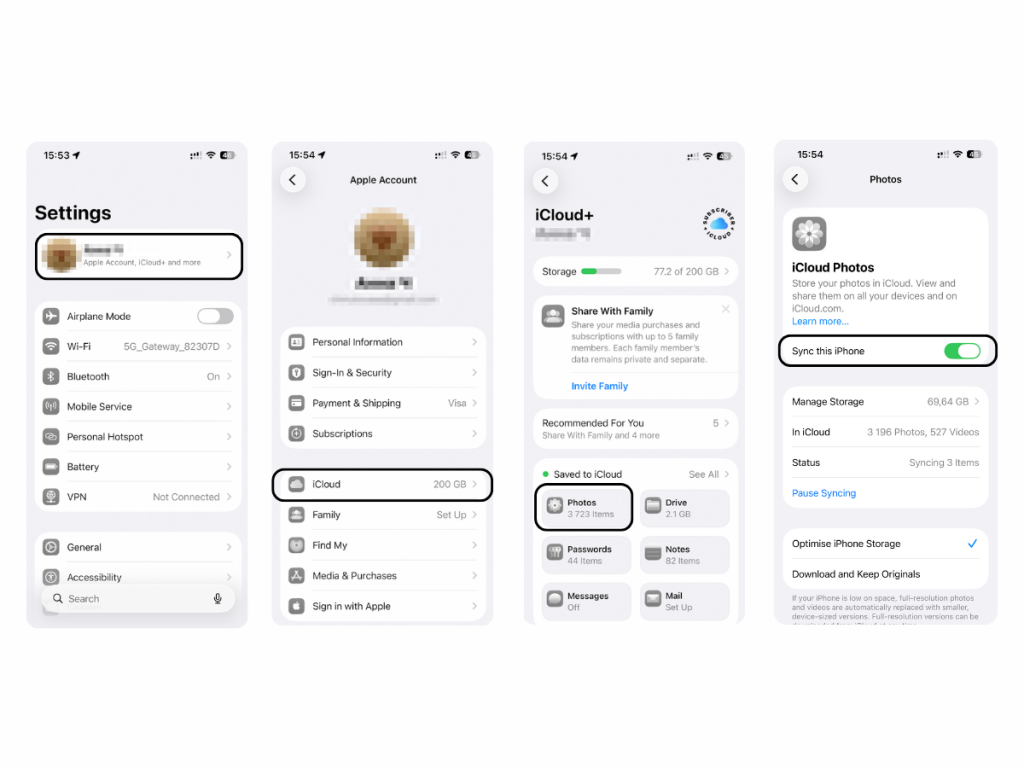
Photos and videos will automatically begin uploading to the cloud in their original quality. Do not interrupt the process before it is complete. If you have a large amount of data, connect your smartphone to a charger and use Wi-Fi.
Why Upload Photos from an iPhone to Cloud Storage?
Cloud storage is especially useful if you frequently take photos and record videos. This is particularly relevant during trips, holidays, and celebrations. Free gigabytes can disappear quickly: yesterday there was enough space, but today there may be nowhere to save a video from the coast, airport photos, and a few dozen selfies.
Reasons to upload photos to cloud storage include:
- your entire photo library will remain available in iCloud even if you lose your smartphone;
- less of the device’s internal storage will be occupied;
- sharing content with other users becomes easier.
Cloud storage is also useful when switching to a new iPhone. There is no need to transfer files manually: sign in to your Apple Account, enable synchronization, and the entire photo library will automatically appear on the device.
How to Free Up Storage on Your Phone Using Cloud Storage
The Optimize iPhone Storage feature helps free up space on your smartphone. It works as follows: the original photos and videos are uploaded to the cloud, while smaller versions are stored on the device. The full-resolution file is automatically downloaded to the iPhone when you view, edit, or share it.
To store photos in iCloud:
- Open Settings on your iPhone.
- Scroll down and open the list of apps.
- Select Photos.
- Choose Optimize iPhone Storage.
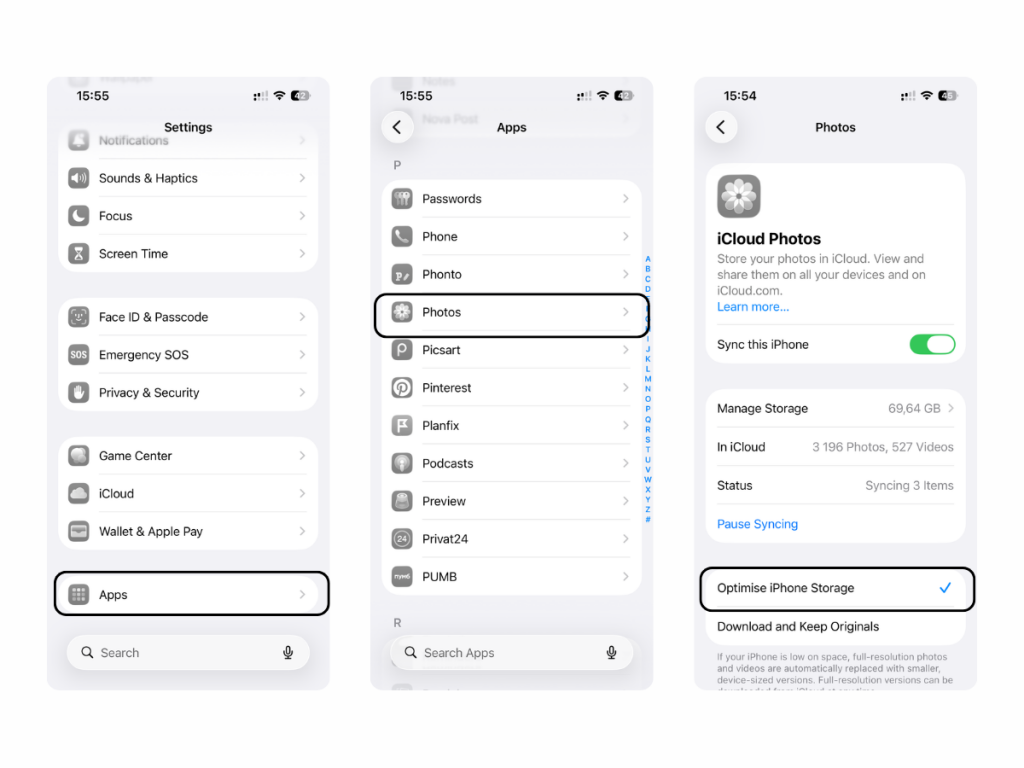
The synchronization time depends on the size of your photo library and the speed of your internet connection.
How to Delete Photos from iCloud Without Removing Them from Your iPhone
If iCloud synchronization is enabled, do not delete photos through the Photos app, as they will be removed from both your smartphone and the cloud. To delete files from iCloud while keeping them on the device, first turn off synchronization. Follow these steps:
- open Settings, tap your Apple ID, and go to iCloud. Select Photos and disable Sync this iPhone;
- tap Download Photos and Videos to save any missing originals to your smartphone;
- wait for the download to finish and check that the entire photo library is available on the device.
Then open the iCloud website and delete the content you no longer need. Keep in mind that if storage optimization is enabled, your iPhone may contain only optimized versions of some files. Therefore, make sure to download the originals before clearing cloud storage.
What Happens If You Turn Off iCloud Photo Sync?
When you turn off synchronization, your iPhone stops exchanging data with Apple’s cloud storage. New photos and videos will no longer be uploaded to iCloud, while any further changes will be saved only on that device. Files that have already been synchronized will remain in the cloud.

Before turning off the feature, your iPhone will ask what to do with the content. If you select Download Photos and Videos, the smartphone will begin downloading the full-resolution originals. Do not interrupt the process before it is complete, as part of the photo library may otherwise remain only in iCloud and become unavailable on the device.
Why Are Photos from Your iPhone Not Uploading to iCloud?
Sometimes, the photo library upload stops or does not start at all. The main reasons include:
- there is no available space left in the cloud — the basic storage capacity is 5 GB, while additional space is available with an iCloud+ subscription;
- the internet connection is unstable — check your Wi-Fi connection or allow data transfers over the mobile network;
- Low Power Mode is enabled — to reduce battery consumption, the phone temporarily pauses some background processes;
- an Apple ID error has occurred — signing out and signing back in may help restore access to the account and related services.
Planning to replace your smartphone and transfer all your data to the cloud? The experts at iSpace, an Apple Premium Partner in Georgia, will help you choose a new device with the optimal storage capacity, connect Apple services, and configure data synchronization. Trade In and instalment payment options are also available when making a purchase.
FAQ
Can I Upload All My Photos to iCloud to Free Up Storage?
Yes. Enable iCloud Photos and select Optimize iPhone Storage. Full-resolution files will be stored in the cloud, while smaller versions will remain on the smartphone.
Can I View Photos from Cloud Storage Without an Internet Connection?
Without an internet connection, you can view files that have already been downloaded to the device. If only an optimized version of a photo is stored on the iPhone, internet access will be required to download the original.
If I Edit a Photo on My Device, Will the Changes Appear in iCloud?
Yes, provided that iCloud Photos is enabled and the device is connected to the internet. All edits will automatically appear in iCloud and on devices signed in to the same Apple Account.
Where Are Photos Stored in iCloud?
The photo library appears in the Photos app on all Apple devices connected to your account. You can also access the files on the iCloud website.
How Long Does It Take to Upload Photos to iCloud?
The upload time depends on the size of the photo library and the connection speed. Several hundred photos may synchronize quite quickly, while uploading a large collection that includes videos can take several hours.
Check out more
Which iPhone Should You Buy After Android in 2026? A Switching Guide
10 Useful Siri Commands: What to Say to Your iPhone to Save Time
Always be aware!
Subscribe to the newsletter and be the first to know about new promotions and special offers